



You know how losing important files can bring your day to a halt. Whether it’s precious photos, crucial work documents, or your entire business data, one accidental deletion or system crash can be devastating.
That’s why setting up daily or weekly backups isn’t just smart—it’s essential. But maybe you’ve put it off, thinking it’s too complicated or time-consuming. What if you could automate the process and protect your data effortlessly? In this guide, you’ll learn simple, step-by-step ways to set up reliable daily and weekly backups that fit your needs.
Keep reading, because securing your data is easier than you think—and it starts right here.
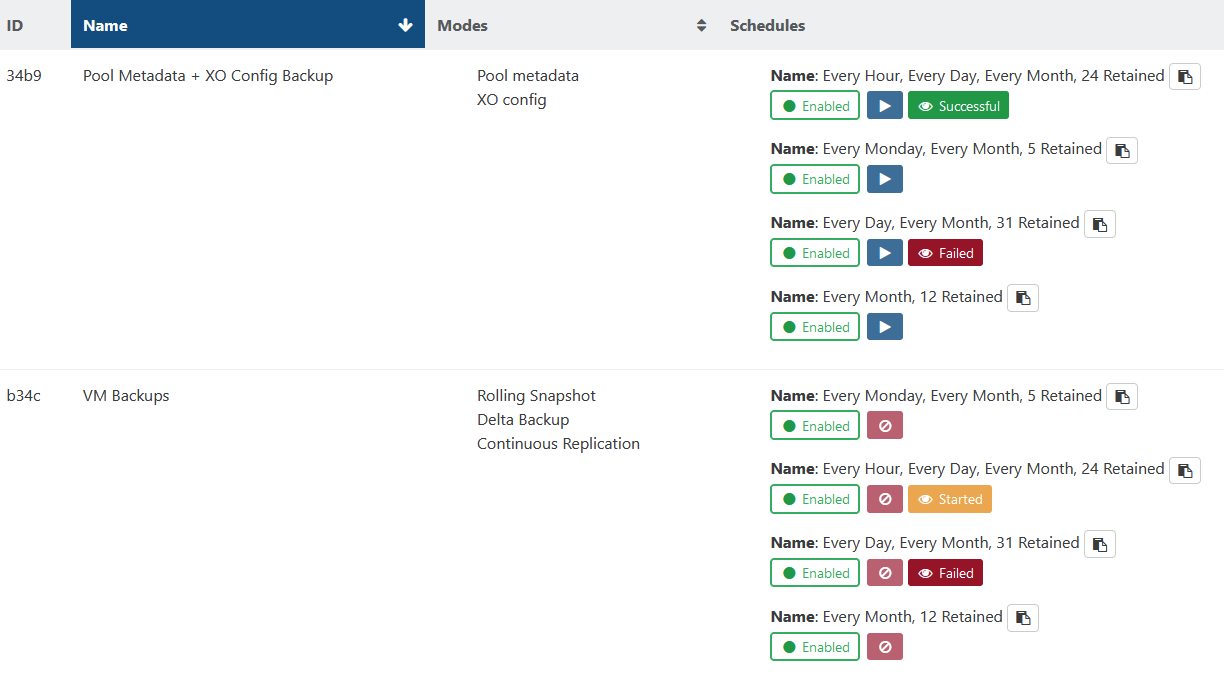
Credit: xcp-ng.org
Choosing the right backup type is essential for protecting your data effectively. Different backup schedules offer various benefits depending on your needs. Understanding daily, weekly, and full or incremental backups helps you maintain a secure data routine.
Daily backups save your data every day. They keep the most recent version of your files. This type helps recover lost data quickly. Daily backups are useful for businesses or users with frequent changes. They minimize data loss by updating backup copies regularly.
Weekly backups save your data once a week. They provide a stable snapshot of your files over time. Weekly backups are easier to manage and require less storage space. They work well for data that changes less often. You can keep weekly backups as a long-term record.
Full backups copy all your data every time. They take more storage and time but are easy to restore. Incremental backups save only the changes since the last backup. They use less space and run faster. Combining both types offers balance. Full backups once a week with incremental backups daily is common.

Credit: www.recordskeeper.ai
Choosing the right backup tools is key to protecting your data. The tool must fit your needs and match your technical skills. Some tools come with your operating system. Others come from third-party developers or cloud providers. Each option has benefits and limits. Understanding these helps you pick the best one for daily or weekly backups.
Most operating systems have built-in backup tools. Windows has “File History” and “Backup and Restore.” macOS offers “Time Machine.” Linux users can use “rsync” or “Deja Dup.” These tools are free and easy to use. They work well for basic backups. They allow you to schedule backups automatically. The downside: they may lack advanced features or cloud integration.
Third-party software offers more features and flexibility. Popular options include Acronis True Image, EaseUS Todo Backup, and Macrium Reflect. These tools support full, incremental, and differential backups. Many provide encryption and compression. Some have easy-to-use interfaces for beginners. They often support multiple storage options like external drives and network locations. These tools usually require a one-time purchase or subscription.
Cloud backup services store your data online. Services like Backblaze, Carbonite, and Google Drive offer automatic backups. They protect data from local disasters like fire or theft. Cloud backups allow easy access from any device. Most services encrypt data for security. Monthly fees depend on storage size. Cloud backups need a stable internet connection. They are ideal for offsite backup and long-term storage.
Setting up daily backups protects your important files from loss. Daily backups keep data safe by saving copies every 24 hours. This practice reduces the risk of losing recent changes or documents. Different operating systems have easy ways to schedule daily backups. Follow simple steps to set up daily backups on Windows, Linux, and Mac.
Windows offers built-in backup tools like File History and Backup and Restore. Open Control Panel and go to “Backup and Restore (Windows 7)”. Choose “Set up backup” and pick a destination drive. Select “Daily” as the backup frequency. You can schedule the backup time to fit your routine. Windows will automatically save your files every day without needing more input.
Linux uses cron jobs to automate tasks such as backups. Open the terminal and type crontab -e to edit the cron schedule. Add a line like this to run a backup script daily at 2 am:
0 2 /path/to/backup-script.shThe script should copy important files to a safe location. Cron runs this task every day at the set time. This method is lightweight and works well for servers and desktops.
Mac users can rely on Time Machine for daily backups. Connect an external drive and open System Preferences. Click “Time Machine” and choose “Select Backup Disk.” Turn Time Machine on and set it to back up automatically. Time Machine backs up hourly, but it keeps daily snapshots too. This ensures your files stay protected without extra work.

Credit: www.youtube.com
Configuring weekly backups helps protect important data without daily effort. Weekly backups capture data changes over several days. This balances storage use and backup frequency. Set up weekly backups to run automatically and keep files organized. Manage storage to avoid running out of space. These steps make weekly backups reliable and easy to maintain.
Start by creating a dedicated folder for weekly backups. Name it clearly, such as “Weekly_Backups”. This folder will store all your backup files for easy access. Organize backups by date within the folder. For example, create subfolders like “Week_01_2024”. This helps find specific backups quickly. Keep the folder separate from daily backups to avoid confusion.
Use built-in tools or software to automate weekly backups. Schedule the backup task to run on a specific day and time each week. Windows Task Scheduler or cron jobs on Linux are good options. Automation saves time and ensures backups happen regularly. Set notifications to confirm when backups complete successfully. Test the automation once to make sure it works.
Check available storage space regularly to avoid backup failures. Delete old backups after a set time, like one month, to free space. Compress backup files to reduce storage size. Use external drives or cloud storage for extra backup copies. Keep backup storage secure and separate from your main system. Proper storage management keeps backups safe and accessible.
Automating backups saves time and protects data without manual effort. It ensures your files are copied regularly and securely. Automation reduces the risk of forgetting backups and keeps your data safe.
Setting up automated backups can suit daily or weekly schedules. Use scripts and system tools to control the process. This section explains key methods to automate backups efficiently.
Batch scripts work well on Windows to automate backups. They run commands to copy files and folders quickly. Write simple scripts using commands like xcopy or robocopy.
Shell scripts serve Linux and macOS users for backup tasks. These scripts use commands like rsync or tar to save files. Save the script and make it executable for easy running.
Scripts can include steps to compress files or move backups to another drive. They run faster and repeat the same task perfectly every time.
Windows Task Scheduler runs batch scripts on a set schedule. Open Task Scheduler and create a task to run your backup script daily or weekly. Set triggers and conditions to match your needs.
Cron is a similar tool for Linux and macOS. Edit the crontab file to schedule backup commands. Use simple timing syntax like 0 2 for daily backups at 2 AM.
Both tools work silently in the background, ensuring backups happen without user input. They free you from manual backup duties.
Backup processes can fail due to errors like missing files or full disks. Scripts should include error checks to catch these problems. Use commands to log errors to a file for review.
Set notifications to alert you if backups fail. Email alerts or pop-up messages help you fix issues early. Regularly check backup logs to confirm success.
Proper error handling keeps your data safe and backup system reliable over time.
Data security is essential for protecting your backups from threats. Secure backup practices prevent data loss and keep your information safe. Establishing strong security measures ensures your backups remain reliable and accessible.
Focus on protecting backups from malware, encrypting files, and testing regularly. These steps help maintain backup integrity and defend against attacks.
Ransomware can lock or delete your backup files. Keep backups offline or on separate networks to avoid infection. Use antivirus software to detect and block threats early. Limit access to backup storage by setting strong user permissions. Regular updates to security tools help stop new ransomware types.
Encryption converts backup data into unreadable code. This protects files from unauthorized access. Use strong encryption standards like AES-256 for best results. Encrypt both stored backups and data in transit. Store encryption keys securely and separately from backup files. Encryption keeps sensitive information safe even if files are stolen.
Testing backups confirms data can be restored correctly. Schedule tests weekly or monthly to check backup health. Verify backup files open without errors and data is complete. Testing helps catch issues before a real emergency occurs. Keep detailed logs of tests to track backup reliability over time.
Backup retention strategies define how long your backups stay before deletion. These strategies help balance storage use and data safety. Choosing the right retention period prevents data loss and saves space. Proper planning lets you restore data from the right backup version. Below are key retention periods and cleanup tips for daily and weekly backups.
Daily backups capture your data changes every day. Keep daily backups for at least 7 days. This period allows you to recover recent files or fix mistakes quickly. Storing too many daily backups wastes storage and complicates management. A one-week retention is usually enough for most small to medium businesses. Adjust this period based on your data change rate and storage limits.
Weekly backups store a snapshot of your data once a week. Keep weekly backups for 4 to 6 weeks. Weekly backups serve as a middle ground between daily and monthly backups. They protect against data loss that daily backups might miss. This retention period offers longer-term data recovery options. Review your business needs to set the best weekly retention time.
Archiving moves older backups to cheaper, long-term storage. This step frees up space on primary backup systems. Clean up expired backups automatically to avoid clutter. Set rules to delete backups beyond retention periods. Use scripts or backup software features for cleanup tasks. Regular cleanup improves backup speed and reduces costs. Always verify archives to ensure data can be restored when needed.
Restoring data is a key part of backup management. It ensures your files return safely after loss or damage. Knowing how to restore from daily or weekly backups saves time and stress. Always verify backup integrity before restoring. This keeps your data safe and reliable.
Daily backups hold recent changes made to your files. To restore, select the backup date closest to the data loss event. Use your backup software or tool to open the daily backup folder. Choose the files or folders to restore. Confirm the restore location, either original or new path. Start the restoration process and wait until it finishes. Check restored files for accuracy and completeness.
Weekly backups save a snapshot of your data once a week. They are useful if daily backups are missing or corrupted. Pick the weekly backup that best matches your needed restore point. Open the backup using the same method as daily backups. Select needed files or entire folders for recovery. Decide where to restore the data. Run the restore and monitor progress. Review the restored content carefully to ensure success.
Backup integrity means your backup is complete and uncorrupted. Test backups regularly by restoring small test files. Use built-in verification tools in backup software if available. Check file sizes and modification dates after restore. Compare restored files with originals to confirm accuracy. Fix or create new backups if errors appear. Reliable backups reduce risk during data recovery.
Backup best practices help protect your data reliably. Proper backups reduce risks and save time during recovery. Follow simple steps to ensure your backups work well every time. Focus on timing, backup types, and keeping records.
Choose backup times when system use is low. Night or early morning works best. Avoid backups during busy hours to prevent slowdowns. Plan daily backups for critical files and weekly for less urgent data. This keeps your system fast and your data safe.
Use different backup methods together. Full backups save everything but take longer. Incremental backups save only new data, saving space. Weekly full backups with daily incrementals balance speed and safety. Mixing backup types helps recover data quickly without using too much storage.
Keep clear records of your backup schedule. Note what is backed up and when. Regularly check backup logs for errors or missed tasks. Use monitoring tools to get alerts about backup status. Good documentation and monitoring catch problems early and keep backups reliable.
Open your backup software and choose “Schedule Backup. ” Select backup frequency, time, and target location. Save settings to enable automatic backups.
The 3-2-2 backup rule means keeping three copies of data on two different media types, with two copies stored offsite.
Open Settings on your iPhone. Tap your name, then iCloud > iCloud Backup. Enable “Back Up This iPhone. ” Your iPhone will back up daily automatically when connected to Wi-Fi, locked, and charging.
Create a batch file using Notepad. Write: xcopy “source” “destination” /s /e /y. Save as backup. bat. Schedule it daily with Task Scheduler.
Setting up daily and weekly backups protects your important files. Regular backups help you avoid data loss from accidents or malware. Choose a backup method that fits your needs and schedule it. Keep your backup storage safe and test your backups often.
Simple steps can save you time and stress later. Start backing up today to keep your data secure.







Leave A Reply Now