



Your WordPress website is more than just a space online—it’s your brand, your voice, and your business. But without the right security, backup, and maintenance practices, all your hard work could vanish in a flash.
Imagine losing your data, facing hackers, or having your site go down at the worst possible moment. That’s why you need to take control now. This guide will show you simple, effective ways to keep your WordPress site safe and running smoothly.
Stick with me, and you’ll learn how to protect your investment and avoid costly headaches in the future.
Credit: simplyscheduleappointments.com
WordPress powers millions of websites worldwide. Its popularity makes it a big target for hackers. Many common security threats can harm your site. Knowing these threats helps you protect your website. This section covers common WordPress security threats and simple ways to prevent them. Keeping your site safe and running smoothly is easier with the right steps.
Brute force attacks use many password guesses to break into your site. Hackers try to guess your username and password repeatedly. Weak passwords make it easier for them to get access.
Malware can damage your site or steal data. It often comes from infected themes, plugins, or unsafe files.
SQL injection lets hackers add harmful code to your database. This can steal or delete your data.
XSS attacks inject harmful scripts into your website. These scripts can steal user data or change your site’s content.
Old WordPress versions, plugins, or themes often have security gaps. Hackers exploit these gaps to attack your site.
| Action | Reason |
|---|---|
| Update WordPress core | Fixes security bugs and improves protection |
| Update plugins and themes | Closes known vulnerabilities |
| Remove unused plugins and themes | Reduces attack points |

Credit: www.ripemedia.com
WordPress sites need strong security to protect data and keep running smoothly. Using the right security plugins helps block hackers and stop attacks. These plugins add layers of protection and monitor your site for problems. They also help you fix issues fast if something goes wrong. Choosing a good security plugin is key to keeping your WordPress site safe and reliable.
Wordfence Security is one of the most popular plugins for WordPress protection. It offers a firewall and malware scanner to stop threats before they cause harm.
This plugin is easy to use and fits both beginners and advanced users.
iThemes Security focuses on fixing common WordPress vulnerabilities. It stops automated attacks and strengthens login safety.
This plugin works quietly in the background to protect your site.
Sucuri Security provides a complete security solution with monitoring and malware cleanup. It keeps your website clean and fast.
| Feature | Description |
|---|---|
| Security Activity Auditing | Tracks all website activity for suspicious behavior |
| Malware Scanning | Regular scans to find and remove threats |
| Security Hardening | Implements best practices to secure WordPress |
| Post-Hack Actions | Helps you recover quickly if hacked |
All In One WP Security & Firewall is a free plugin packed with features. It protects your site without slowing it down.
Its visual interface shows security strength in simple graphs.
Backing up your WordPress website protects your data from loss. Setting up daily or weekly backups keeps your site safe. Regular backups help restore your site quickly after problems. This guide shows simple steps for creating backups on a schedule. You can choose daily or weekly backups based on your site’s update frequency. Let’s explore how to set up these backups easily.
Select a backup plugin that fits your needs. Popular plugins include:
Check if the plugin supports daily and weekly backup options. Also, ensure it saves backups to remote locations like Google Drive or Dropbox.
Set the backup frequency based on how often you update your site.
| Backup Frequency | Best For | Benefits |
|---|---|---|
| Daily | Sites with frequent updates | Protects recent changes and reduces data loss |
| Weekly | Sites updated less often | Less storage use, still keeps site safe |
Choose daily if you post new content or make changes every day. Weekly works well for smaller sites or blogs.
Automatic backups run without manual effort, keeping your site safe regularly.
Protecting the WordPress admin login is vital for website security. The admin area is a common target for hackers. Using strong methods like Two-Factor Authentication (2FA) and limiting login attempts helps stop unauthorized access. These techniques add extra security layers, making it harder for attackers to break in. This section explains simple steps to secure your admin login effectively.
Two-Factor Authentication (2FA) is a security method that requires two forms of verification to log in. It adds a second step after entering the password.
2FA makes it harder for hackers to get in, even if they know your password. They need the second code, which only you have.
Google Authenticator or Two Factor.Note: Keep backup codes safe in case you lose access to your phone.
Limiting login attempts stops hackers from trying many passwords quickly. It blocks access after several failed attempts.
| Benefit | Description |
|---|---|
| Prevents Brute Force Attacks | Blocks users after multiple wrong tries. |
| Reduces Server Load | Stops repeated login attempts from slowing the site. |
| Alerts Admin | Sends notifications of blocked login attempts. |
Use plugins like Limit Login Attempts Reloaded or Login LockDown for easy setup.
Keeping your WordPress themes and plugins updated is very important for security and performance. Updates fix bugs and close security holes. But updates can sometimes cause problems on your site. This section shows how to update safely without breaking your website.
Always make a full backup before updating. This saves your site if something goes wrong. Use a trusted backup plugin or your hosting control panel. Backup files include your database, themes, plugins, and uploads.
Use a staging site to test updates. It is a copy of your live site where you can update themes and plugins without risk. Check for errors and broken features. Only apply updates on the live site if testing is successful.
Update themes and plugins one at a time. This helps find which update causes problems. Avoid updating everything at once. Start with plugins, then update the theme last.
| Step | Action | Reason |
|---|---|---|
| 1 | Update one plugin | Check for issues after each update |
| 2 | Test your website | Ensure site works properly |
| 3 | Repeat for other plugins | Isolate any problem updates |
| 4 | Update your theme | Apply last to reduce conflicts |
Choose themes and plugins from trusted developers. Check user reviews and update history. Reliable tools have fewer bugs and better support. This lowers chances of update problems.
WordPress core updates improve security and compatibility. Keep it updated to work well with themes and plugins. Updates fix vulnerabilities that hackers exploit.
Automatic updates save time but can cause issues. Enable them only for minor updates or trusted plugins. For major updates, update manually after testing.
// Enable automatic minor updates only add_filter( 'allow_minor_auto_core_updates', '__return_true' ); WordPress sites face constant threats from hackers. Cleaning up a hacked WordPress website is crucial to protect your data and visitors. This process involves several careful steps to remove malicious code and restore your site’s safety. Acting quickly limits damage and helps your site run smoothly again.
First, find signs of hacking. Common issues include:
Check your site’s files and database for unusual changes. Note which parts are affected. This helps focus cleanup efforts.
Before making changes, create a full backup. Save your WordPress files and database. This step protects your data in case cleanup causes issues.
Use these tools or methods:
| Backup Method | Description |
|---|---|
| Hosting Backup | Many hosts offer one-click backups from control panels. |
| Plugins | Plugins like UpdraftPlus or BackupBuddy automate backups. |
| Manual Backup | Download files via FTP and export database via phpMyAdmin. |
Scan your site with security plugins like Wordfence or Sucuri. These tools find infected files and suspicious code.
Steps to clean your site:
Hackers often steal login details. Change passwords for:
Review user roles on your site. Remove unknown users and reduce permissions for others.
Keep your site updated to close security holes. Update:
Old software is a common target for hackers.
Strengthen your site’s defense with these steps:
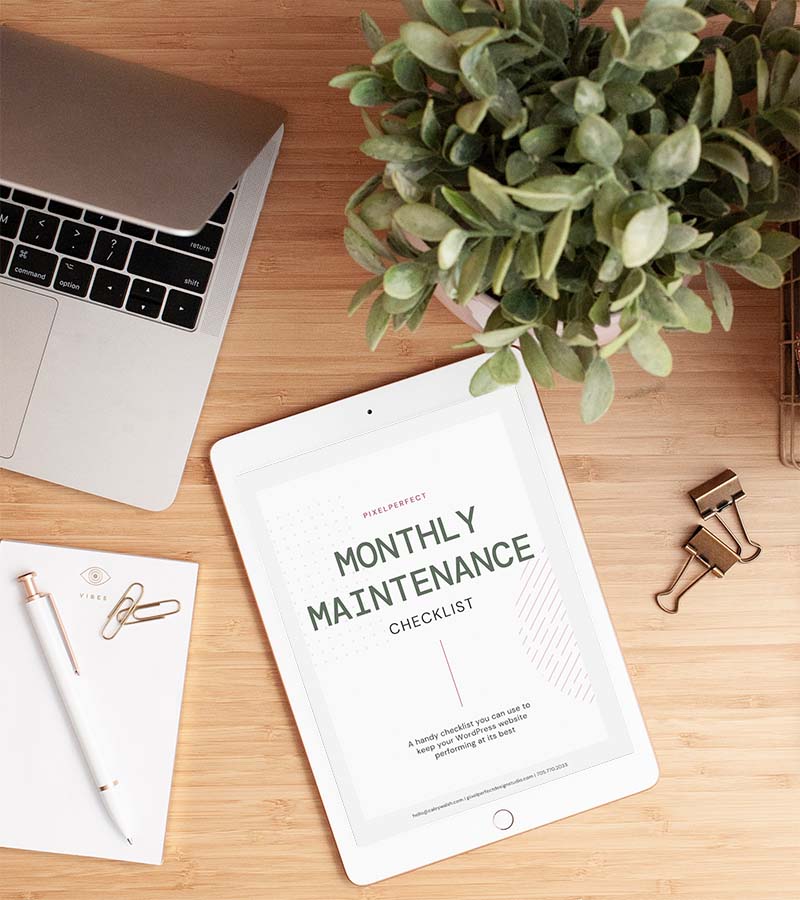
Keeping a WordPress site safe and running smoothly needs regular care. The WordPress Maintenance Checklist helps manage security, backups, and updates. This list guides you to protect your site from threats and avoid downtime. Follow it step-by-step to keep your website healthy and fast.
Updates fix bugs and close security holes. Always update:
Use the dashboard to check for updates weekly. Outdated software invites hackers.
Backups save your site data. Store backups in two places:
Schedule automatic backups every week. Test restoring backups to ensure they work.
Regular scans stop threats early. Use security plugins to:
Change passwords often. Use strong, unique passwords for all accounts.
Fast sites improve user experience. Do this monthly:
Use tools like Google PageSpeed Insights to check speed.
Test site features regularly to avoid errors:
Fix broken elements immediately to keep visitors happy.
Track visitor data and behavior. Use plugins or Google Analytics to see:
| Metric | Why It Matters |
|---|---|
| Traffic | Shows site popularity |
| Bounce Rate | Indicates content quality |
| Conversion Rate | Measures goal success |
Use data to improve content and design.
Credit: pixelperfectdesignstudio.com
Keeping a WordPress site safe and running smoothly requires more than just backups and updates. Monitoring your site’s uptime and performance is essential. Uptime means your site is online and available to visitors. Performance measures how fast your site loads and responds. Both affect user experience and search rankings. Regular checks help spot issues early. This section shows simple ways to track uptime and performance effectively.
Uptime monitoring tools alert you if your site goes down. They check your website at regular intervals from different locations. If downtime occurs, you get notified by email or SMS. This helps fix problems quickly and avoid lost visitors.
Site speed impacts visitor satisfaction and SEO. Use performance tools to check how fast your pages load. These tools offer detailed reports with suggestions for improvement.
Focus on reducing load times below 3 seconds. Compress images, use caching, and choose a fast hosting provider.
Real User Monitoring tracks actual visitor experience on your site. It records loading times, errors, and user interactions. This data helps understand how real users see your site.
Regular monitoring keeps your site healthy. Create a simple schedule for checks:
| Task | Frequency | Purpose |
|---|---|---|
| Uptime check | Every 5 minutes | Ensure site is live |
| Performance audit | Monthly | Identify speed issues |
| Real User Monitoring review | Weekly | Track actual user experience |
Stick to this routine. It helps keep your WordPress site safe, fast, and reliable.
Setting up GDPR compliance and a privacy policy on your WordPress site is essential to protect your visitors’ data. The GDPR (General Data Protection Regulation) is a law that controls how websites collect and use personal information from people in the European Union. Even if your site is outside the EU, you may still need to comply if you have visitors from there.
Creating a clear privacy policy and proper GDPR setup helps build trust with your audience. It also prevents legal problems and fines. Below are important steps to help you configure your WordPress site for GDPR and privacy compliance.
GDPR focuses on user consent, data protection, and transparency. Your WordPress site must:
Implement these rules carefully to avoid penalties and protect your visitors’ rights.
WordPress has built-in tools to help you add a privacy policy page. Follow these steps:
Make sure the policy is easy to read and updated regularly.
GDPR requires explicit consent before collecting data using cookies or forms. Add consent tools using plugins:
| Plugin | Features | Free/Paid |
|---|---|---|
| Cookie Notice | Simple cookie consent banner, customizable text, and buttons | Free |
| Complianz | Automatic cookie scans, consent management, and policy generation | Free with premium options |
| GDPR Cookie Consent | Cookie consent, script blocking, and cookie audit | Free with premium upgrades |
Activate one of these plugins to inform users and record their consent properly.
GDPR gives users rights to access, delete, or export their data. WordPress offers tools for this:
Keep a record of these requests for your site’s security and compliance.
Migrating a WordPress website can seem tricky. Moving files and databases needs care to avoid errors. A safe migration keeps your site working well. It protects your data and SEO rankings. This guide shows simple steps for moving your WordPress site without problems.
Start by backing up your whole site. This means saving all files and your database. Use a trusted backup plugin or do it manually via your hosting panel.
Deactivate caching and security plugins temporarily. They can block migration processes.
Pick a method based on your skill and resources.
| Method | Description | Best For |
|---|---|---|
| Manual Migration | Move files via FTP and import database with phpMyAdmin. | Experienced users |
| Plugin Migration | Use plugins like Duplicator or All-in-One WP Migration. | Beginners and intermediate users |
| Hosting Migration | Some hosts offer free migration services. | Anyone wanting hassle-free transfer |
You should back up your WordPress site at least once a week. For high-traffic sites, daily backups are ideal. Regular backups protect your data from hacks, crashes, or accidental loss. Use automated backup plugins to simplify this process and ensure consistent protection.
Use strong passwords and enable two-factor authentication. Keep WordPress, themes, and plugins updated. Install a reliable security plugin to monitor threats. Limit login attempts and regularly scan for malware. These steps reduce vulnerability and safeguard your website effectively.
Optimize images and use caching plugins. Choose a fast, reliable hosting provider. Minimize the use of heavy plugins and scripts. Keep your WordPress database clean and updated. These measures improve loading times and enhance user experience.
Regularly update WordPress core, themes, and plugins. Delete unused plugins and themes to reduce vulnerabilities. Monitor site uptime and fix broken links promptly. Backup your site consistently to avoid data loss. These tasks ensure security and optimal performance.
Keeping your WordPress site safe takes regular care and attention. Update your plugins and themes often. Use strong passwords and reliable security tools. Back up your site frequently to avoid data loss. Check your site’s performance and fix issues quickly.
A secure and well-maintained site runs smoothly and builds trust. Stay consistent with these simple steps. Protect your website and enjoy peace of mind.







Leave A Reply Now