


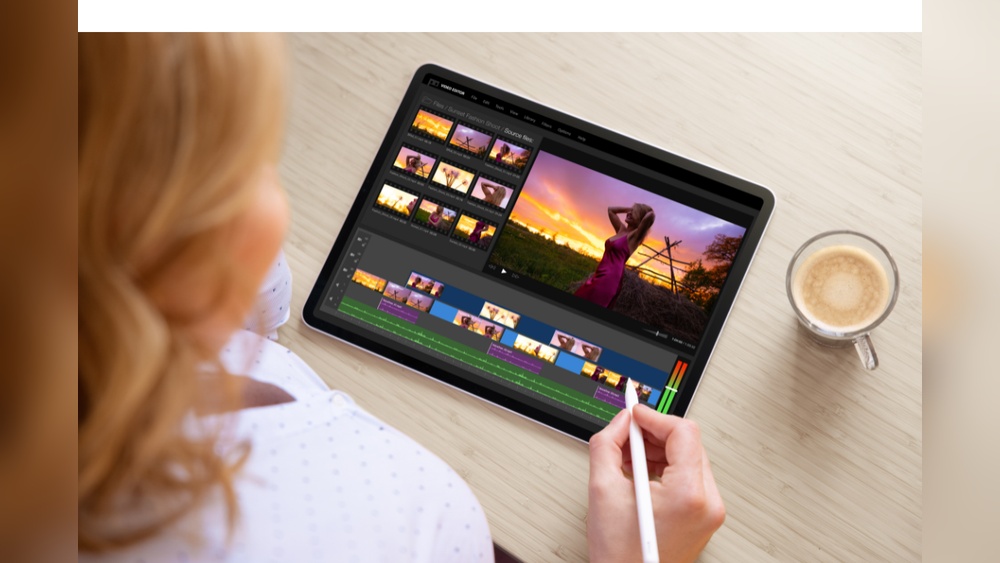
If you want your course videos to stand out and keep your learners hooked, editing like a pro is a must. But where do you start?
You need the right tools that make editing simple, fast, and effective—without endless frustration. Imagine cutting out all the guesswork and having software that helps you polish your videos until they look sleek and professional. You’ll discover the best tools for editing course videos that anyone can use to create engaging, high-quality content.
Whether you’re a beginner or looking to upgrade your skills, these tools will transform your videos and help you deliver your message with impact. Keep reading to find the perfect fit for your editing needs!
Top professional editors provide powerful tools to refine course videos. They offer features that help create clear, engaging content. These editors support various formats and allow easy adjustments. Choosing the right software can improve video quality and save editing time.
Adobe Premiere Pro offers a flexible timeline for precise editing. It supports multiple video and audio tracks. Users can add transitions, effects, and titles with ease. The software includes color correction tools to enhance visuals. It also has fast rendering for quick previews. Collaboration features allow teams to work together smoothly.
Final Cut Pro excels in speed and smooth playback. It uses magnetic timeline to simplify clip arrangement. The software supports 4K and 360-degree video editing. It includes advanced color grading tools for professional looks. Integration with Apple devices is seamless and efficient. It also offers a wide range of built-in effects and plugins.
DaVinci Resolve combines editing, color correction, and audio post-production. It is known for its powerful color grading features. The software supports multi-user collaboration on the same project. It offers a free version with many professional tools. Its interface is customizable to fit different workflows. DaVinci Resolve handles high-resolution footage smoothly and efficiently.
Editing course videos professionally requires reliable tools. Free editing software can deliver strong results without costs. These tools offer easy interfaces and essential features. They allow cutting, trimming, adding effects, and exporting high-quality videos. Using free software can help beginners start video editing quickly. Here are some of the best free options to consider.
CapCut and InShot are popular mobile apps for video editing. Both provide simple controls and useful features. Users can trim clips, add music, and insert text easily. CapCut offers advanced options like keyframe animation and filters. InShot is great for quick edits and social media videos. These apps support exporting videos without watermarks. They work well for creating engaging course videos on smartphones.
Clipchamp is an online video editor that runs in browsers. It requires no download or installation. Users can drag and drop clips to the timeline for editing. Clipchamp offers tools like trimming, cropping, and adding titles. It also supports stock footage and audio. Export options include HD video without watermarks. This editor suits those who prefer working on a PC without complex software.
Adobe Premiere Rush is a simplified version of Adobe Premiere Pro. It focuses on fast and easy video editing. The software supports multi-track editing and color correction. Users can add transitions, titles, and audio tracks quickly. Adobe Premiere Rush syncs projects across devices for editing on the go. The free plan covers basic features and exports without watermarks. It’s ideal for users needing a balance of power and ease.
Choosing the right video editing tool makes course creation simpler. User-friendly options help you focus on content, not complex software. These tools offer clear interfaces and easy features. They suit beginners and those who want quick results.
Below are some top picks for easy-to-use editors that still deliver great results.
iMovie comes free with all Mac computers. It offers a clean layout with drag-and-drop editing. You can trim clips, add titles, and insert background music. The software supports 4K video and simple color corrections. iMovie is perfect for quick edits and polished course videos.
Filmora works on both Windows and Mac. It has many built-in effects and transitions. The interface is straightforward with clear icons. Filmora lets you add text, overlays, and audio easily. Beginners find it simple to create professional-looking videos fast.
Camtasia focuses on screen recording and editing. It is ideal for tutorial and training content. You can capture your screen and add voice narration. Camtasia also offers interactive quizzes and animations. Its timeline editor is simple yet powerful for course creators.

Credit: www.youtube.com
AI-powered video tools simplify editing course videos with smart automation. These tools save time by handling repetitive tasks. They improve video quality with creative effects and realistic avatars. Using AI tools helps produce engaging and professional videos quickly. Below are some popular AI-powered video tools for course creators.
Descript transcribes your video audio automatically and accurately. It turns speech into editable text you can correct easily. You can cut or move parts by editing the transcript. This saves hours of manual editing. Descript also supports adding captions, improving video accessibility and SEO.
RunwayML offers AI-based creative effects for course videos. It can remove backgrounds without green screens. It applies style transfers to change the look and feel of videos. RunwayML also helps with object tracking and motion effects. These features enhance videos without complex software skills.
Synthesia creates AI avatars that speak your script in multiple languages. You can add a virtual presenter to explain course content. This tool removes the need for recording live video. Avatars look natural and professional, helping keep viewers engaged. Synthesia is great for courses needing clear, consistent narration.
Editing course videos well helps keep learners interested. Clear, smooth videos improve understanding and retention. Simple edits make content easy to follow. These editing tips guide course creators to polish their videos with ease.
Cut out mistakes or long pauses to keep videos tight. Trim clips to remove unnecessary parts quickly. Use jump cuts to maintain flow and avoid dull moments. Shorter clips help learners focus on key points. Keep scenes concise to boost engagement.
Use effects sparingly to highlight important ideas. Smooth transitions prevent abrupt scene changes. Fade-ins and fade-outs create a professional look. Simple wipes or dissolves work well between topics. Avoid flashy effects that distract from learning.
Clear audio is vital for course videos. Remove background noise with noise reduction tools. Adjust volume levels for consistent sound throughout. Use a good microphone to capture crisp voice audio. Add soft background music carefully to support, not overpower.
Credit: digiquestacademy.edu.in
Choosing the right software is key to editing course videos efficiently. The software you pick affects the quality, ease, and speed of your work. Picking the best fit depends on your skills, budget, and the devices you use. This section helps you decide which video editing tool suits your needs best.
Beginners need simple software with easy controls. Programs like iMovie or CapCut offer basic editing features. They help users learn without feeling overwhelmed. Intermediate editors might prefer Wondershare Filmora or Adobe Premiere Rush. These have more options but remain user-friendly. Professionals often choose Adobe Premiere Pro or DaVinci Resolve. These tools provide advanced controls and effects for polished videos.
Free and low-cost options exist for every budget. DaVinci Resolve offers powerful features at no cost. Clipchamp provides web-based editing with a free plan. Camtasia has a trial version and affordable pricing for educators. For tight budgets, open-source editors like Shotcut can work well. Choose software that balances cost with your editing needs.
Check if the software works on your device. Windows, Mac, and Linux have different supported programs. iMovie is exclusive to Mac users. Adobe Premiere Pro and DaVinci Resolve work on both Windows and Mac. Some editors, like Clipchamp, run in browsers and need no installation. Make sure your computer meets the software’s system requirements for smooth editing.
Collaborative editing features make video editing efficient and smooth. These tools help teams work together on course videos without confusion. Multiple editors can contribute, review, and improve the content simultaneously. This saves time and keeps the project organized.
Cloud-based collaboration allows editors to access videos from any device. Changes save automatically, so everyone sees the latest version. This removes the need for sending large files back and forth. Teams can comment and suggest edits right on the platform. This keeps communication clear and fast.
Version control tracks all changes made to the video project. Editors can revert to earlier versions if needed. It prevents accidental loss of important edits. Teams can compare different edits side by side. This feature ensures the final video is polished and error-free.
Sharing options let teams distribute videos easily for review. Editors can send links or invite collaborators directly. Exporting supports various formats for different platforms. This helps deliver course videos in the best quality. Quick sharing speeds up feedback and final approval.

Credit: vidpros.com
Use professional software like Adobe Premiere Pro, Final Cut Pro, or DaVinci Resolve. Master cutting, trimming, adding effects, and color correction for polished videos. Practice regularly and study tutorials to improve your editing skills and create engaging, high-quality content.
Professionals use video editing software like Adobe Premiere Pro, Final Cut Pro, DaVinci Resolve, and Camtasia for high-quality edits.
DaVinci Resolve offers powerful free editing tools for beginners. Adobe Premiere Pro suits advanced learners seeking professional features. CapCut and iMovie provide easy interfaces for quick edits. Choose based on your skill level and project needs.
Adobe Premiere Pro stands out as the best video editing tool for professionals. DaVinci Resolve offers powerful free editing features. For beginners, Wondershare Filmora and iMovie provide easy, user-friendly options. Choose based on skill level and project needs for optimal results.
Choosing the right video editing tool makes your course videos clear and engaging. Simple software helps cut, trim, and add effects easily. Some tools suit beginners, while others fit advanced users. Focus on features that meet your needs and skill level.
Practice editing regularly to improve your video quality. Great videos keep learners interested and help them understand better. Start with a tool you feel comfortable using today.







Leave A Reply Now