



If your WordPress site feels slow or clunky, chances are your visitors are leaving before they even see what you have to offer. You want your pages to load fast, keeping your audience engaged and boosting your search rankings.
That’s where caching plugins come in. These powerful tools store copies of your site’s pages, so they load instantly for every visitor. But with so many caching plugins out there, how do you pick the best one for your needs?
You’ll discover the top WordPress caching plugins that can speed up your site, improve user experience, and make your life easier — without needing to be a tech expert. Ready to give your website the fast boost it deserves? Let’s dive in!
Fast websites keep visitors happy and improve search rankings. Caching plugins help speed up WordPress sites by storing copies of pages. This reduces server load and delivers pages quickly. Choosing the right caching plugin matters for site performance and user experience.
Below are some top caching plugins that work well for most WordPress sites. Each plugin has unique features to boost your site speed and reduce loading times.
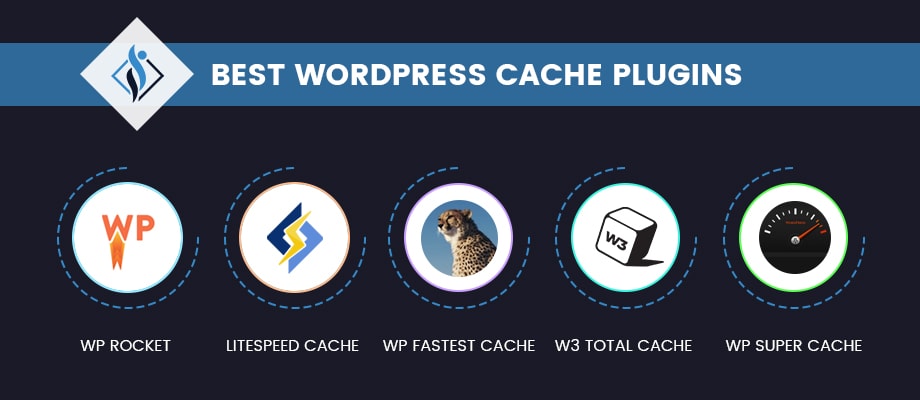
WP Rocket is user-friendly and powerful. It creates cached copies of pages instantly. It also combines files and optimizes database. The plugin works well with most themes and plugins. No technical skills are needed to set it up.
LiteSpeed Cache offers advanced caching options. It supports server-level caching for faster results. The plugin includes image optimization and database cleanup. It works best with LiteSpeed web servers but functions on others too.
WP Super Cache is free and simple to use. It generates static HTML files to serve visitors quickly. The plugin supports CDN integration and compression. It suits beginners who want effective caching without complexity.
Autoptimize focuses on optimizing scripts and styles. It minifies CSS, JS, and HTML files to reduce size. The plugin can work with other caching tools for better speed. It helps improve page load without caching pages directly.
WP Optimize combines caching with database cleaning. It removes unnecessary data and compresses images. The plugin also caches pages to boost speed. It offers an all-in-one solution for site performance and maintenance.
Choosing between free and premium caching plugins for WordPress can shape your site’s speed and user experience. Both types help reduce load times and improve performance. The key differences lie in features, support, and cost. Understanding these differences helps pick the right plugin for your needs.
Free caching plugins offer basic features like page caching and browser caching. They usually include options for minifying CSS and JavaScript files. Premium plugins provide advanced features such as database optimization, lazy loading, and CDN integration. Some premium plugins also offer easier setup and more customization. Free plugins work well for small websites, while premium ones suit larger sites with higher traffic.
Premium plugins often deliver better performance due to more efficient caching methods. They use advanced algorithms to serve cached pages faster. Free plugins can speed up sites but might lack optimization for complex setups. Premium versions also update regularly to fix bugs and improve speed. For heavy traffic sites, premium plugins maintain consistent performance under load.
Free caching plugins cost nothing and are available in the WordPress plugin directory. Premium plugins require a one-time payment or subscription. Prices vary from $30 to $100 per year depending on features and support. Some premium plugins offer free trials or money-back guarantees. Investing in a premium plugin can save time and effort in the long run, especially for business sites.
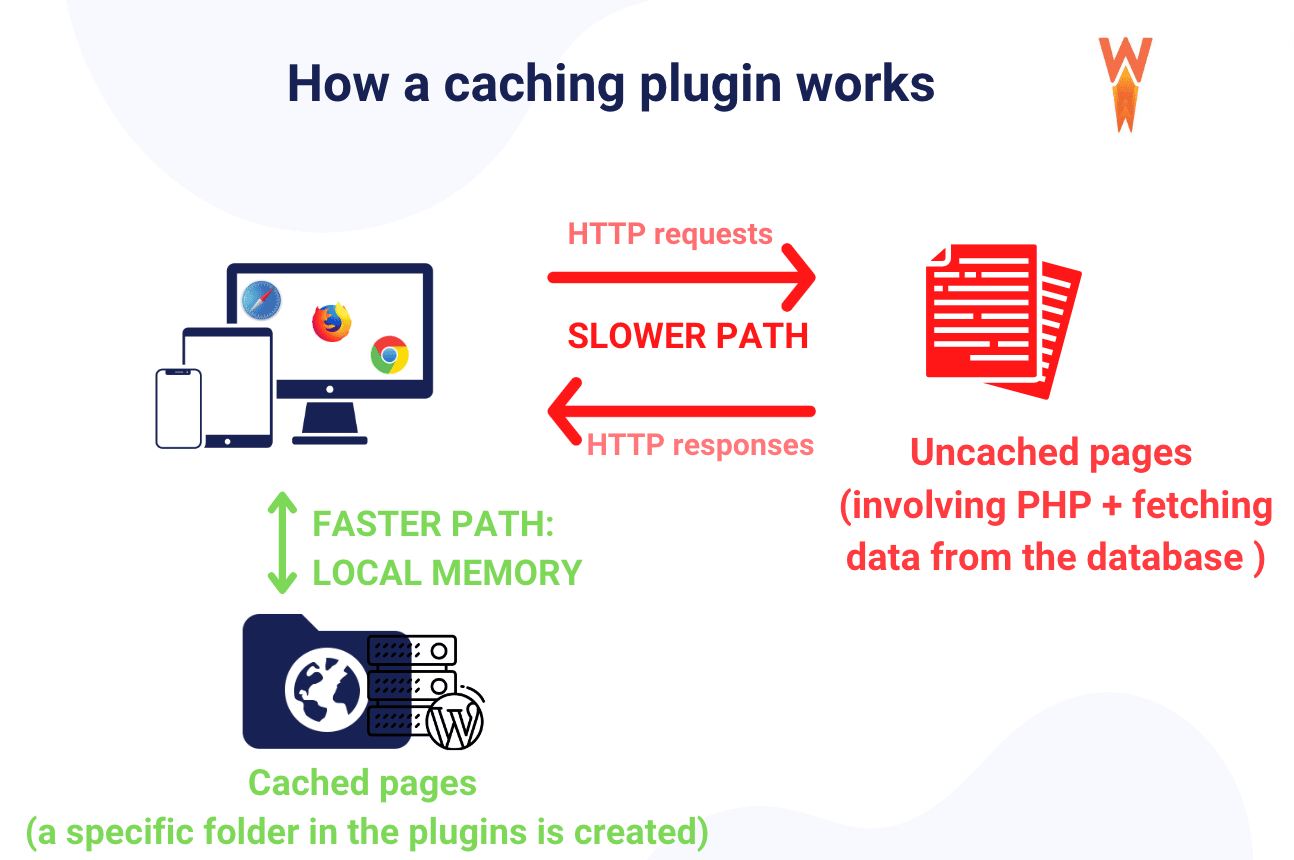
Caching plays a key role in speeding up your WordPress site. It stores copies of your site’s data. This lets visitors access pages faster. Instead of building pages from scratch each time, cached data loads quickly. Faster loading improves user experience and can boost search rankings.
Different types of caching work together to make your site faster. Each type targets a specific part of your website. Understanding these can help you choose the right caching plugin.
Browser caching saves website files on a visitor’s browser. Files like images, CSS, and JavaScript are stored locally. When the visitor returns, the browser loads these files from its cache. This reduces the need to download files again. It cuts loading time and decreases server requests.
Page caching creates static HTML versions of your pages. These pages load faster than dynamic pages. Visitors see the cached page instead of waiting for WordPress to process PHP scripts. It significantly lowers the time to display content. This is one of the most effective ways to speed up your site.
Object caching stores database query results in memory. It helps reduce the load on your database server. This caching is useful for sites with many complex queries. It speeds up repeated requests for the same data. Your site handles traffic better and runs more smoothly.
Database caching focuses on storing entire query results or data sets. It reduces the time spent retrieving information from the database. This caching works well for dynamic websites with frequent database calls. By limiting database access, it boosts site responsiveness and reduces delays.
Credit: wp-rocket.me
Choosing the right caching plugin for your WordPress site is key to better speed and user experience. Not all plugins work the same for every website. Some may clash with your theme or other plugins. Others might be too complex or lack support. Think about your website setup and needs before picking one. This helps avoid problems and keeps your site fast and stable.
Check if the caching plugin works well with your theme. Some themes have custom features that may not work with certain caching methods. Also, test compatibility with your other plugins. Conflicts can cause errors or slow down your site. Look for plugins with good reviews on compatibility. A plugin that fits smoothly saves you time and trouble.
Your server type affects which caching plugin will work best. Shared hosting, VPS, or dedicated servers each have different limits. Some plugins need specific server modules or settings. For example, LiteSpeed Cache works best on LiteSpeed servers. Make sure your server supports the plugin’s features. Choosing a plugin that fits your server ensures better performance.
Pick a plugin that is easy to set up and manage. Not all users are tech experts. A simple interface with clear instructions helps avoid mistakes. Some plugins offer automatic configuration. This saves time and reduces errors. Look for plugins that offer helpful guides or user-friendly dashboards. Easy-to-use plugins keep your site running smoothly without stress.
Good support is important for any plugin. Check if the plugin developer provides regular updates. Updates fix bugs and improve security. Also, see if the plugin has active customer support. Forums, chat, or email support can help solve problems fast. A well-supported plugin protects your site and keeps it performing well.
Configuring caching plugins is essential for improving your WordPress site speed. Proper setup helps reduce server load and delivers content faster to visitors. A well-configured cache plugin can boost user experience and SEO rankings.
Understanding the right settings ensures you get the best performance without breaking your site. This section breaks down the process from basic setup to advanced options and highlights common errors to avoid.
Start by installing your chosen caching plugin from the WordPress repository. Activate it and navigate to its settings page. Enable page caching to store static versions of your pages.
Set cache expiration time to a reasonable value, such as 1 hour or 24 hours. Clear cache automatically when you update posts or pages. Enable browser caching to reduce load times for returning visitors.
Explore options like minification of CSS, JavaScript, and HTML files. This reduces file size and speeds up loading. Enable gzip compression to shrink data sent to browsers.
Use cache preloading to generate cached pages before visitors arrive. Set rules to exclude sensitive pages like admin or cart pages. Integrate with Content Delivery Networks (CDNs) to serve files faster worldwide.
Do not enable too many optimization features at once. This can cause conflicts and break your site layout. Avoid caching dynamic pages that change frequently, like shopping carts or user profiles.
Don’t forget to clear cache after making site changes. Failing to do so shows old content to visitors. Avoid setting very long cache expiration times, which may delay updates.
Improving website speed goes beyond just installing caching plugins. Several additional steps can boost performance and enhance user experience. These tips work well alongside caching to help your WordPress site load faster and run smoother.
A CDN stores copies of your website on servers worldwide. Visitors load your site from the nearest server, reducing loading time. This also lowers the traffic load on your main hosting server. Many CDNs offer free and paid plans. Using a CDN can greatly improve site speed, especially for users far from your hosting location.
Large images slow down web pages. Optimizing images reduces their file size without losing quality. Use tools or plugins to compress images before uploading. Also, choose the right format like JPEG for photos and PNG for graphics. Smaller images help pages load faster and improve overall performance.
CSS and JavaScript files control the look and behavior of your site. These files often contain extra spaces and comments that increase file size. Minifying removes these unnecessary parts. This results in smaller files that load quicker. Many caching plugins also offer minification features. Minifying your code helps speed up your website efficiently.
Caching plugins speed up your WordPress site by storing copies of pages. Sometimes, cache causes problems. Pages may not update or show wrong content. Troubleshooting cache issues helps keep your site fast and accurate. The following tips help fix common cache problems.
Clearing cache removes old stored files. It forces the plugin to save fresh copies. Most caching plugins have a clear cache button in their settings. Use this option after making changes to your site. Clearing browser cache may also help if you see outdated content.
Cache plugins can conflict with other plugins or themes. Disable all other plugins except the cache plugin. Check if the issue persists. If the problem resolves, enable plugins one by one. This finds the conflicting plugin. Changing themes may also reveal conflicts with caching.
Dynamic content changes for each visitor, like shopping carts or user profiles. Cache plugins may store and serve wrong data for dynamic parts. Exclude these sections from caching using plugin settings. Some plugins allow adding rules to skip caching specific pages or blocks.
Credit: www.samarpaninfotech.com
Credit: www.wpbeginner.com
WP Rocket is widely regarded as the best caching plugin. It offers easy setup, fast performance, and advanced features to boost SEO and user experience.
Yes, free plugins like WP Super Cache and LiteSpeed Cache provide solid caching solutions. They improve speed and performance without any cost.
Caching plugins store static copies of pages. This reduces server load and speeds up page delivery for visitors.
Yes, faster website loading times improve user experience. This positively impacts SEO rankings on search engines like Google.
Choosing the right caching plugin can boost your WordPress site’s speed. Fast websites keep visitors happy and improve search rankings. Each plugin offers unique features and ease of use. Try a few to see which fits your needs best. Remember to test your site after activation.
Good caching reduces load times and server strain. Keep your site running smooth and efficient. A reliable cache plugin helps your site grow steadily.







Leave A Reply Now