


Are you looking to bring together Zoom, Google Meet, and live classes into one smooth experience? Whether you’re teaching, hosting meetings, or managing online events, integrating these platforms can save you time and keep everything organized.
Imagine starting your live sessions with just one click, sharing seamless links, and having all your schedules synced perfectly. In this guide, you’ll discover simple steps and insider tips to connect Zoom and Google Meet with your live classes effortlessly.
Ready to streamline your virtual interactions and boost your productivity? Keep reading to unlock the full potential of these powerful tools working together for you.
Zoom and Google Meet are popular tools for online meetings and live classes. Both platforms offer video, audio, and chat features. They help teachers and students connect easily. Understanding their basics helps in choosing the right tool for your needs.
This section explains the key features and compatibility of both platforms. It will guide you in integrating them smoothly with your live classes.
Zoom allows up to 100 participants in the free plan. It supports breakout rooms for group discussions. Screen sharing is easy and supports multiple users at once. It also offers virtual backgrounds and meeting recordings.
Google Meet supports up to 100 participants for free. It integrates well with Google Calendar and Gmail. Screen sharing and live captions come built-in. Meeting recordings save directly to Google Drive.
Both platforms offer chat during meetings. Zoom has more advanced host controls. Google Meet focuses on simple and secure meetings.
Zoom works on Windows, Mac, iOS, Android, and Linux. It also supports browsers like Chrome, Firefox, and Safari. Users can join without installing the app via the web client.
Google Meet runs smoothly on all major browsers. It works on Windows, Mac, iOS, and Android devices. Since it is browser-based, no app installation is needed for most users.
Both platforms offer mobile apps for on-the-go access. They support desktop and laptop use equally well.
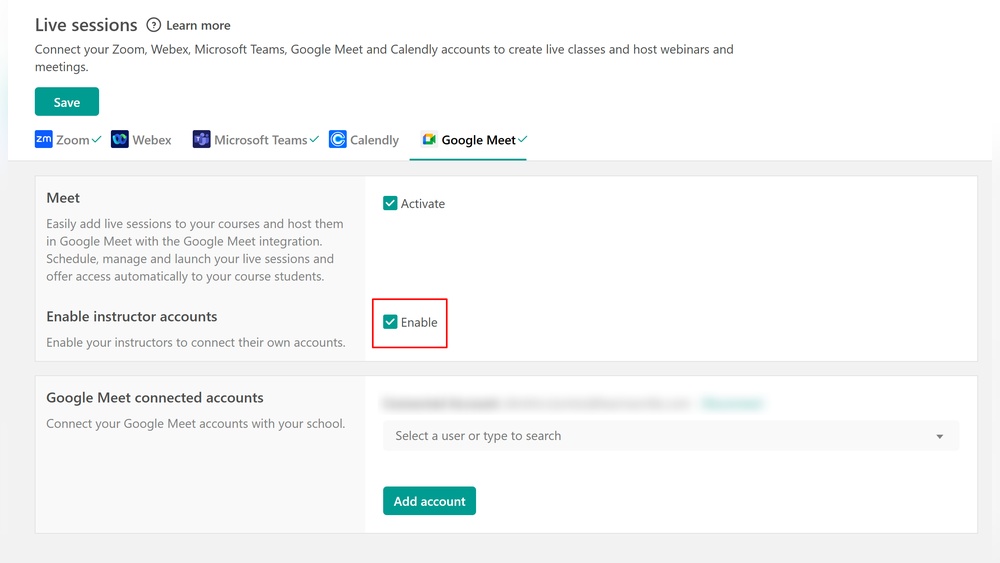
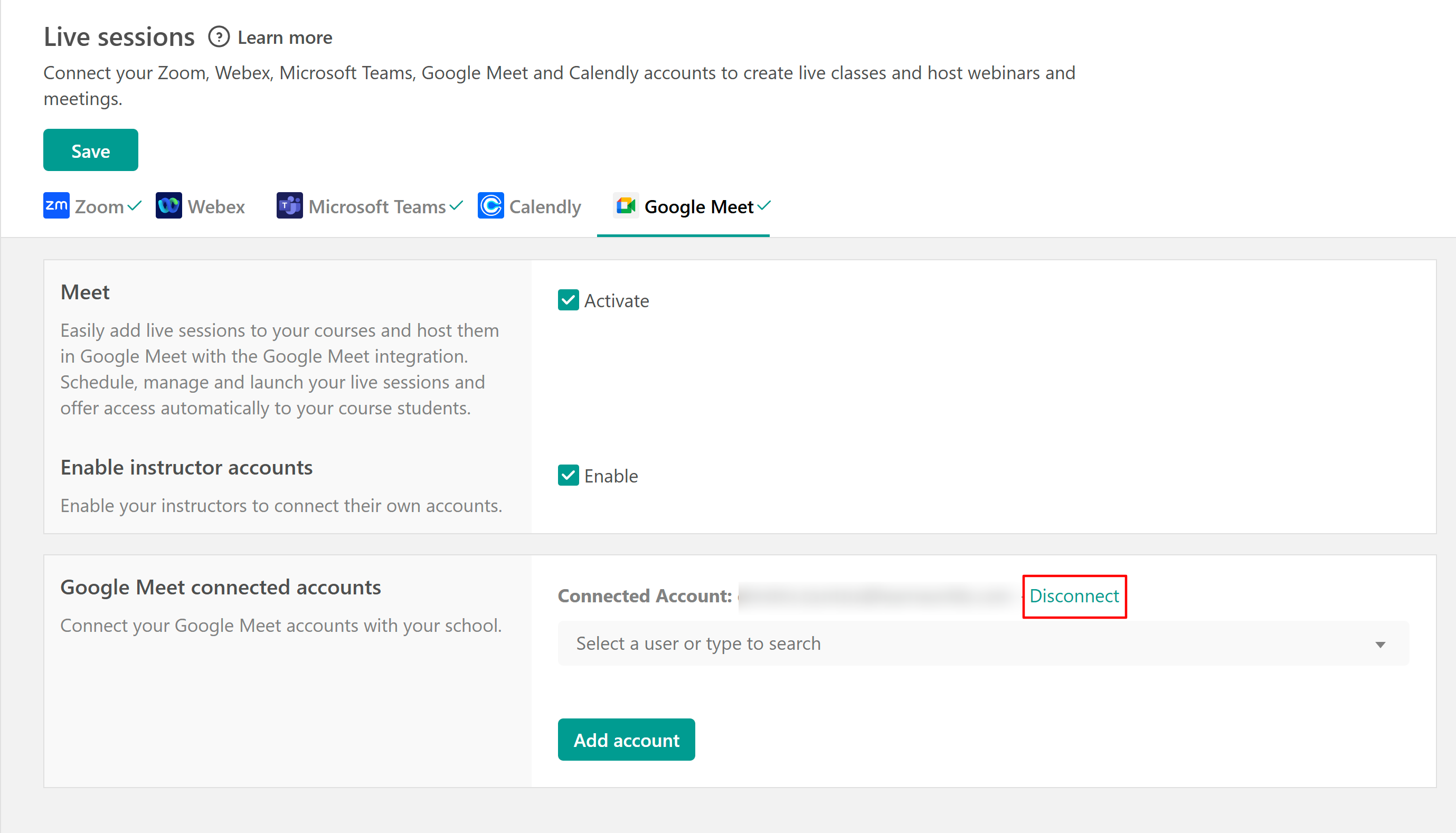
Setting up Google Meet in Google Classroom makes live teaching simple and efficient. Teachers can create video meeting links directly within their classroom. This integration helps connect teachers and students quickly. It also keeps all class activities in one place for easy access.
Google Classroom offers tools to generate Meet links and control meeting settings. These features improve class management and student engagement. The setup process is straightforward and requires only a few steps.
Open Google Classroom and select your class. Find the section labeled “Meet” on the class stream page. Click the “Generate Meet Link” button. Google Classroom will create a unique video meeting link for your class.
Alternatively, go to the class “Settings” by clicking the gear icon. Under the “General” tab, find “Generate Meet Link” and click it. The Meet link appears automatically and saves to your class. Share this link with students for easy joining.
After generating the Meet link, customize your meeting settings. In Google Classroom settings, you can decide who can join the meeting. Control whether students can join before the teacher arrives. This helps keep the meeting safe and focused.
Enable or disable features like screen sharing or chat during the meeting. Adjust these settings to match your teaching style and class needs. Managing meeting settings in Google Classroom improves class control and student participation.
Using Zoom with Google Workspace makes online meetings simple and efficient. Google Workspace users can add Zoom to their Gmail and Google Calendar. This integration helps schedule and join Zoom meetings quickly.
With Zoom integrated, you avoid switching between apps. You can manage meetings directly from your Google tools. This saves time and keeps everything organized in one place.
First, open the Google Workspace Marketplace. Search for the “Zoom for Google Workspace” add-on. Click the install button and follow the prompts. Grant the necessary permissions for Zoom to access your Google account.
After installation, the Zoom icon appears in Gmail and Google Calendar. This add-on connects Zoom with your Google Workspace apps. You can now schedule and join Zoom meetings more easily.
Open Google Calendar and click “Create” to make a new event. Find the Zoom icon in the event details section. Click “Add Zoom Meeting” to generate a meeting link automatically.
Fill in event details like date, time, and guests. When you save, the Zoom meeting link is added to the calendar invite. Guests receive the link instantly in their email invites.
This method keeps your meeting information organized. It also helps guests join meetings with a single click. Scheduling Zoom meetings through Google Calendar is fast and user-friendly.
Credit: support.learnworlds.com
Integrating Zoom and Google Meet helps streamline online communication and teaching. It allows users to switch between platforms without missing important meetings. Combining these tools offers flexibility for different user preferences and requirements. Understanding how these platforms work together improves productivity and user experience.
Zoom Interop is a service that connects Zoom and Google Meet. It lets Zoom users join Google Meet meetings from their Zoom devices. This feature is useful for organizations using both platforms. It removes the need to switch apps during meetings. Administrators can enable this to simplify cross-platform collaboration.
With Zoom Interop, Zoom Room devices join Google Meet meetings smoothly. Hosts can control admission settings for participants. This integration enhances meeting accessibility for all users. It also supports video, audio, and screen sharing across platforms.
Joining meetings across Zoom and Google Meet is easy with proper setup. Users receive meeting links that work on both platforms. Scheduling tools like Google Calendar help manage invitations. Participants can click a single link to join from any device.
Some third-party apps also assist in joining meetings across platforms. They provide unified interfaces to handle both Zoom and Google Meet. This reduces confusion and improves user convenience. Training users on these tools helps ensure smooth meeting experiences.
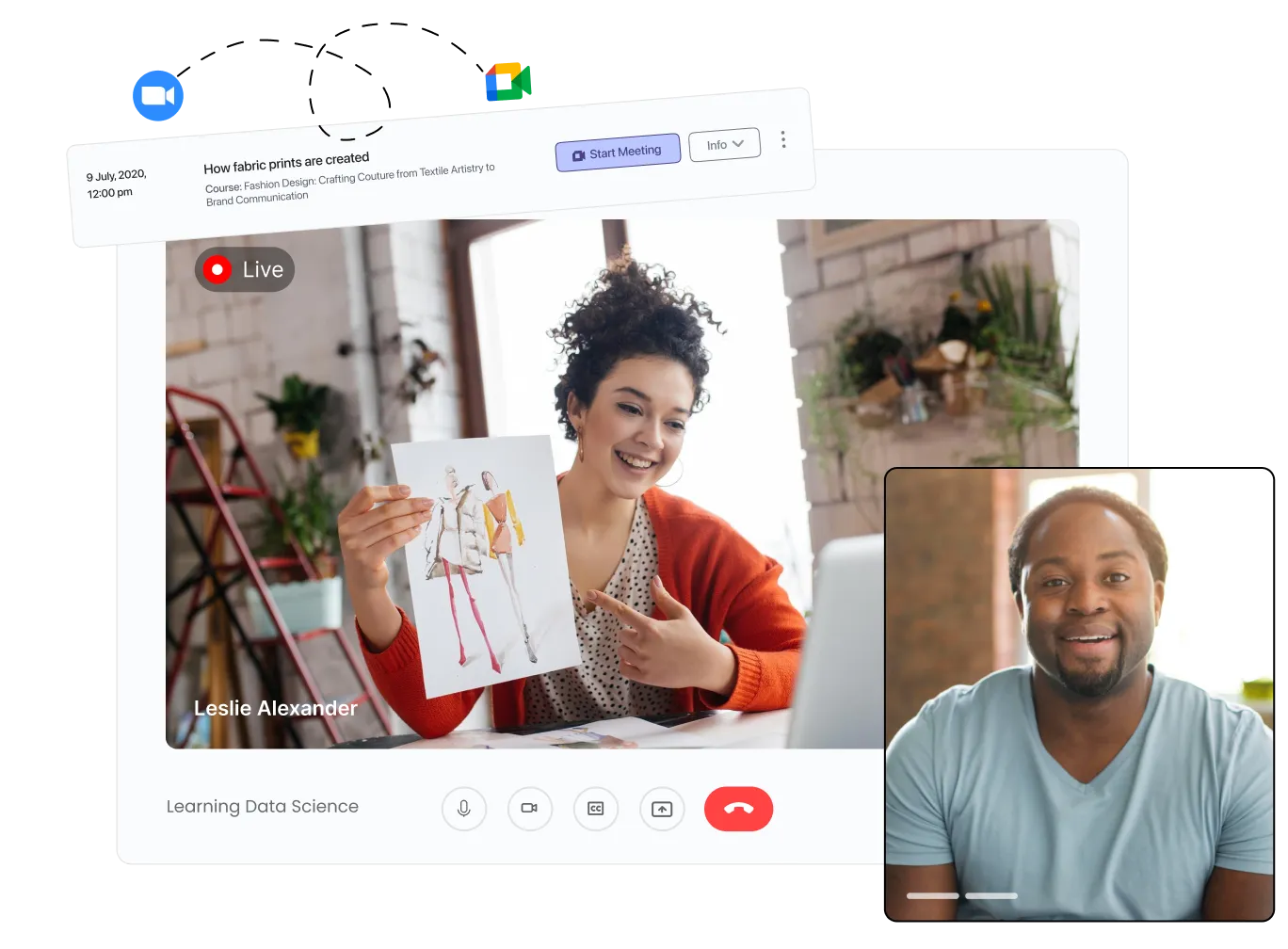
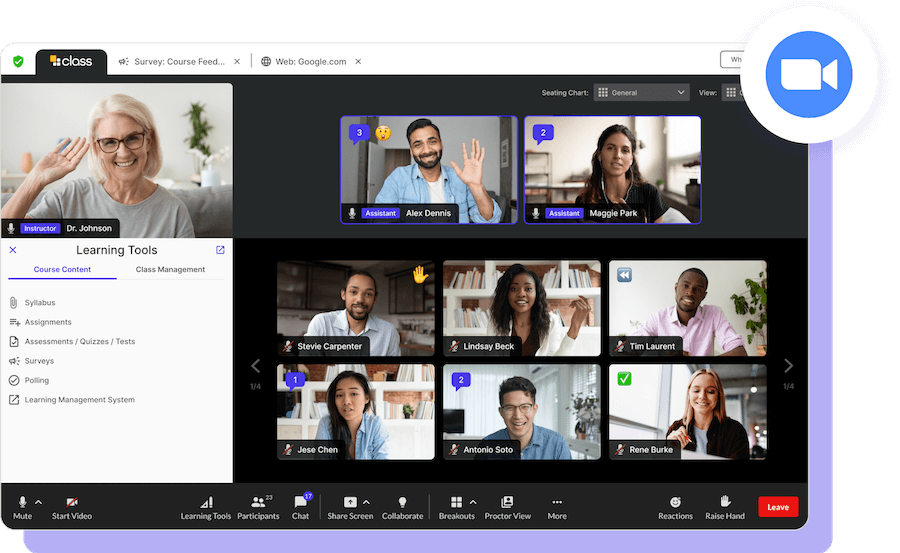
Hosting live classes efficiently requires smooth coordination and the right tools. Combining popular video platforms like Zoom and Google Meet can enhance the teaching experience. It helps teachers reach more students and manage sessions better. Using live streams expands your audience beyond the usual limits. This section explores how to combine these platforms and use live streams effectively.
Using Zoom and Google Meet together offers flexibility in live classes. Each platform has unique features that support different teaching styles. Zoom allows breakout rooms and advanced controls for small group work. Google Meet integrates well with Google Classroom and Drive for easy resource sharing. Switching between both platforms can meet diverse class needs. Scheduling sessions on both helps reach students with different preferences. Teachers can adapt quickly if one platform faces technical issues. Integration tools can simplify managing meetings on both platforms.
Live streaming classes on platforms like YouTube or Facebook extends the audience. It allows students who cannot join live calls to watch later. Streaming also reduces pressure on video meeting tools by offloading viewers. Teachers can interact using chat features during live streams. This interaction keeps students engaged even without direct video presence. Recording live streams creates valuable content for future lessons. Broadening reach helps include students from different time zones and locations. Live streams complement video calls, making live classes more accessible.
Credit: tutorlms.com
Integrating Zoom, Google Meet, and live classes can improve your online teaching experience. Smooth integration helps avoid confusion and technical issues. It keeps your sessions organized and accessible for all participants.
Simple steps can make your virtual meetings run better. Focus on managing participant access and optimizing audio and video quality. Both are key to a successful online class or meeting.
Set clear rules for who can join your meetings. Use passwords or waiting rooms to control entry. Admit participants only when you are ready. This prevents unwanted guests and distractions.
Share meeting links securely. Avoid posting links on public sites. Send invites directly through email or your learning platform. This keeps your class private and safe.
Assign roles like host or co-host to trusted people. They can help manage participants and keep order. Use mute options to reduce background noise during sessions.
Test your microphone and camera before starting. Use a quiet room with good lighting. Natural light or soft lamps work best. Avoid bright lights behind you to prevent shadows.
Ask participants to mute themselves when not speaking. This reduces noise and echoes. Encourage the use of headphones for clearer sound. Check internet speed to avoid lag and disconnections.
Keep your software updated. New versions fix bugs and improve performance. Close other apps that use bandwidth to keep your connection strong.
Troubleshooting common issues is essential when integrating Zoom, Google Meet, and live classes. Technical problems can disrupt your sessions and cause frustration. Understanding how to fix frequent errors ensures smooth communication and better learning experiences.
This section covers two main problems: connection issues and permission errors. Simple steps will help you resolve these quickly and get back on track.
Connection issues often cause delays or dropouts during live classes. Check your internet speed first. A weak signal slows down video and audio.
Close other apps using the internet to free bandwidth. Restart your router if the connection remains slow. Use a wired connection if possible for better stability.
Update your Zoom or Google Meet app to the latest version. Older versions may have bugs causing connection failures. Clear your browser cache if using Google Meet online.
Try switching devices to find if the problem is hardware related. Restart your computer or mobile device to fix minor glitches. Test your microphone and camera before the class starts.
Permission issues block users from joining meetings or using features. Check if your browser or app has permission to access your camera and microphone. Go to your device settings to enable these permissions.
Hosts should verify participant roles and settings. Some meetings restrict entry to invited users only. Make sure you use the correct meeting link and password.
If you cannot share your screen, confirm the host enabled screen sharing. Update your app or browser to avoid compatibility problems. Disable browser extensions that may block permissions.
Ask your administrator to check meeting policies if access errors continue. Proper permissions avoid delays and keep classes running smoothly.
Credit: www.class.com
Sign in to Google Classroom and select your class. Click “Generate Meet link” under the Meet section or in Settings. Save the Meet link to share live session access with students instantly.
Zoom and Google Meet can work together using Zoom Interop for Google Meet. It allows Zoom Rooms to join Google Meet meetings seamlessly. Administrators can enable Zoom devices to join without manual admission, facilitating integration between both platforms for smooth video conferencing.
Sign in to Google Classroom and create a class. Schedule a Zoom meeting, then share its link in Classroom’s stream or assignments. Students click the link to join Zoom sessions directly.
Yes, Zoom integrates with Google via the Zoom for Google Workspace add-on. It lets users schedule, join, and manage Zoom meetings from Gmail and Google Calendar. This integration automatically adds Zoom meeting details to Google Calendar invites, enhancing convenience and productivity.
Integrating Zoom, Google Meet, and live classes can boost your teaching experience. Use simple steps to connect these tools smoothly. Scheduling meetings from one platform saves time and effort. Students enjoy easy access to lessons without confusion. Try combining features for better interaction and learning.
Keep exploring ways to make online classes effective. Consistent practice helps you manage these tools confidently. Online teaching becomes more organized and engaging this way.







Leave A Reply Now