



Are slow-loading images frustrating your visitors? You’re not alone.
Large image files can drag down your website’s speed, making users click away before they even see your content. But what if you could keep your images sharp and vibrant without the wait? That’s where image compression and lazy loading come in.
By optimizing your images to load only when needed, you’ll boost your site’s performance, improve user experience, and even climb higher in search engine rankings. Ready to learn how to set up image compression and lazy loading easily and effectively? Keep reading, because your website’s speed and success depend on it.
Credit: www.inmotionhosting.com
Image compression techniques help reduce file size without losing quality. Smaller images load faster, improving website speed and user experience. Choosing the right compression method balances image quality and file size. This section explains key techniques and formats for effective compression.
Lossless compression shrinks image size without losing data. The image stays identical to the original. This method suits images needing high quality, like logos or graphics with text.
Lossy compression removes some image data to reduce size more. This can lower quality but creates smaller files. It works well for photos and complex images where slight quality loss is okay.
JPEG is common for photos and uses lossy compression. It balances quality and size well. PNG uses lossless compression, good for images with clear edges or transparency. WebP supports both lossy and lossless modes, offering good quality with smaller sizes. It is supported by most modern browsers.
Select PNG for sharp images needing transparency or no quality loss. Use JPEG for photos where small size matters more than perfect detail. WebP fits most cases and reduces load times effectively. Test formats to see which works best for your images and website.
Image compression reduces the file size of pictures without losing quality. This makes websites faster and easier to use. Smaller images load quicker and save data. Many benefits come from using image compression on your site.
Compressed images take less time to load. This speeds up the entire webpage. Visitors do not have to wait long to see content. Fast load times keep users happy and engaged. They are less likely to leave your site.
Smaller image files use less bandwidth. This lowers hosting costs and saves data for users. It is especially good for mobile visitors with limited plans. Reduced bandwidth helps websites run smoothly under heavy traffic. It also lowers the chance of slowdowns.
Search engines prefer fast-loading websites. Compressed images help pages load quickly. This improves your site’s ranking on Google and others. Better rankings bring more visitors and potential customers. Image compression is a simple way to boost SEO.
Lazy loading is a simple method to speed up web pages. It delays loading images until users need them. This reduces initial page load time and saves bandwidth. Lazy loading helps websites perform better on all devices, especially mobiles. It also lowers server load by loading fewer resources upfront.
Lazy loading waits to load images until they near the screen. When a user scrolls down, the images appear just in time. Browsers check the user’s viewport and load images only when needed. This avoids loading all images at once, reducing data use and speeding up the page.
“Above the fold” means the part of the page visible on load. Images here load immediately to avoid blank spaces. “Below the fold” means content that appears after scrolling. These images load later, only when users scroll down. This method balances speed and user experience well.
Lazy loading makes pages feel faster and smoother. Users see content quickly without waiting for all images. It reduces data use on mobile devices, saving users’ data plans. Pages stay responsive, lowering bounce rates and improving engagement. Overall, lazy loading creates a better browsing experience.

Credit: amasty.com
Setting up lazy loading improves website speed and reduces data use. Images load only when users scroll near them. This makes pages appear faster and saves bandwidth, especially on mobile devices.
Lazy loading is easy to add with modern tools. It helps keep your site responsive and user-friendly. Below are ways to set up lazy loading effectively.
Modern browsers support lazy loading with a simple HTML attribute. Add loading="lazy" to your image tags. This tells the browser to delay loading images until needed. No extra code or plugins are required.
Example:

This method works well for most sites and improves load times quickly.
Some sites need advanced lazy loading features. JavaScript libraries offer more control and options. Popular plugins include LazyLoad, Lozad.js, and Blazy.js. They support animations, placeholders, and custom triggers.
These scripts detect when images enter the viewport and load them dynamically. They work on older browsers that lack native support. Choose a lightweight library to avoid slowing your site.
Do not lazy load images above the fold. These images must load immediately for better user experience. Use lazy loading mainly for images below the visible area.
Test your site after enabling lazy loading. Check that images load correctly and page speed improves. Avoid blocking important content or ads with lazy loading.
Combine lazy loading with optimized image compression. Smaller images load faster and save bandwidth. Use correct file formats like WebP or optimized JPEGs.
Combining image compression with lazy loading enhances website speed and user experience. Compression reduces image file sizes without losing much quality. Lazy loading delays loading images until users scroll near them. Together, these methods cut down initial page load time and save bandwidth.
Implementing both ensures faster display of content users see first. It also lowers server load and improves SEO rankings. The balance between quality and speed becomes easier to manage by combining these techniques.
Compress images before adding lazy loading. This step shrinks file size and speeds up the first view. Use formats like WebP or optimized JPEG for smaller files. Lazy loading then defers off-screen images, so only visible images load immediately. This reduces initial data transfer and boosts performance.
Choose compression settings that keep images clear but small. Too much compression can blur details, while too little slows loading. Test different levels to find the best fit. Lazy loading helps by only loading images when needed, allowing higher quality for visible images.
Use tools like Google PageSpeed Insights or Lighthouse. Check load times and image sizes before and after changes. Monitor user experience on different devices and connections. Adjust compression and lazy loading settings based on results. Regular testing keeps your site fast and user-friendly.
Efficient image compression and lazy loading improve website speed and user experience. Using the right tools simplifies these tasks. This section introduces essential resources to help optimize images and set up lazy loading effectively.
Image compression tools reduce file sizes without losing quality. TinyPNG and JPEG-Optimizer are popular choices. They support multiple image formats and offer easy drag-and-drop interfaces. Online tools like Compressor.io allow quick compression without software installation. For batch processing, desktop apps like Adobe Photoshop provide advanced options. Using these tools saves bandwidth and speeds up page loading.
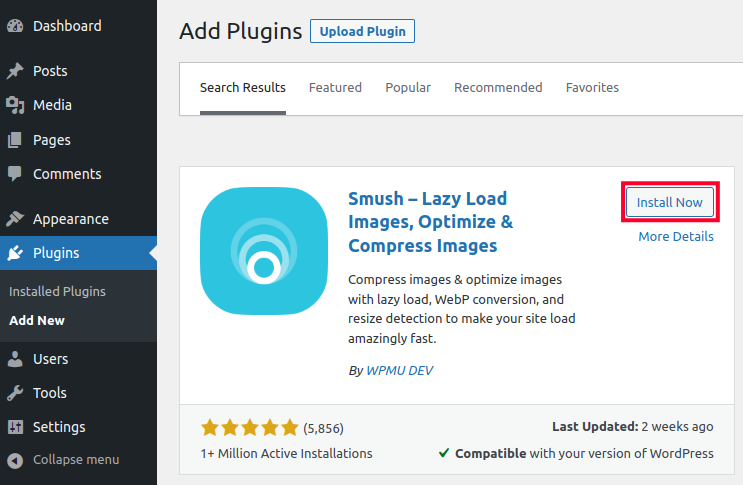
Content management systems need plugins to enable lazy loading. WordPress users benefit from plugins like WP Rocket and Lazy Load by WP Rocket. These plugins automatically defer offscreen images. For Joomla, JCH Optimize offers lazy loading features. Drupal users can use the Lazy Loader module. These plugins require minimal setup and improve site performance by loading images only when needed.
Testing website speed is vital after image compression and lazy loading setup. Google PageSpeed Insights measures loading times and suggests improvements. GTmetrix provides detailed reports on image optimization and lazy loading effects. WebPageTest offers customizable tests across devices and locations. Lighthouse, built into Chrome DevTools, audits performance and accessibility. Use these platforms regularly to track website speed and user experience.
Setting up image compression and lazy loading boosts website speed and user experience. Avoiding common mistakes helps maintain image quality and ensures smooth page loading. These errors often reduce performance and frustrate visitors.
Compressing images too much lowers their quality visibly. Blurry or pixelated images create a poor impression. Balance file size and clarity for best results. Use tools that preview compression effects before saving.
Lazy loading images visible on page load delays their display. This causes blank spaces or flickering on the screen. Load above the fold images immediately to keep the page visually stable. Apply lazy loading only to images further down.
Mobile users need optimized images for smaller screens and slower connections. Using large desktop images wastes bandwidth and slows loading. Serve scaled, compressed images based on device size. Test your site on multiple devices to ensure fast performance.

Credit: en-ca.wordpress.org
Add the attribute loading=”lazy” to your image tags in HTML. This defers off-screen image loading until they near the viewport. This method improves page speed and user experience with minimal code.
The most efficient image compression format is WebP. It offers superior compression with high quality and supports transparency and animation. WebP reduces file size more than JPEG and PNG, speeding up web loading and improving SEO. Most modern browsers fully support WebP images.
Enable lazy loading to speed up page load by deferring off-screen images. It improves user experience and reduces bandwidth. Load visible images immediately for instant display.
Image lazy loading delays image loading until they near the user’s viewport. This speeds up page load and saves bandwidth. It improves user experience and reduces server costs by loading only necessary images as users scroll.
Compressing images and setting up lazy loading improves website speed and user experience. Smaller image files load faster, saving bandwidth and reducing wait times. Lazy loading delays off-screen images until needed, which helps pages appear quickly. These simple steps keep your site efficient and easy to navigate.
Regularly check your images and settings to maintain good performance. A fast website keeps visitors happy and encourages them to stay longer. Start applying image compression and lazy loading for a smoother browsing experience today.







Leave A Reply Now