


Are you looking to boost engagement and add real value to your courses or training programs? Adding quizzes, certificates, and assignments is the perfect way to keep your learners motivated and track their progress.
But how do you get started? This step-by-step guide will walk you through exactly how to create effective quizzes, issue certificates that recognize achievement, and set up assignments that challenge and inspire. By the end, you’ll have everything you need to make your learning experience more interactive and rewarding—for you and your audience.
Let’s dive in and transform your content into a dynamic learning journey!
Setting up quizzes is essential for evaluating learners effectively. It lets you check knowledge and track progress easily. A well-structured quiz boosts engagement and helps learners retain information better.
This section guides you through key steps to set up quizzes smoothly. Follow each part to ensure your quizzes work perfectly with your course.
Select a quiz platform that fits your course needs. Look for user-friendly tools with features like multiple question types and automatic grading. Popular options include Google Forms, Quizizz, and LearnDash. Ensure the platform supports integrations with your learning management system (LMS).
Write clear and simple questions that match your learning goals. Use different question types such as multiple choice, true/false, and short answer. Keep questions short and avoid tricky language. Include enough questions to cover the main topics without overwhelming learners.
Adjust quiz settings to control the experience. Set time limits if needed to add a challenge. Decide if learners can see correct answers after submission. Enable options like randomizing questions to reduce cheating. Choose how many attempts are allowed for each quiz.
Connect your quizzes to the gradebook to track scores automatically. This saves time and ensures accurate records. Most LMS platforms let you link quizzes directly to grade items. Check that each quiz’s results appear under the correct course section for easy review.

Credit: badgeos.org
Adding assignments to your course enhances learning and tracks progress. Assignments let learners apply knowledge practically. Clear instructions help learners understand tasks better. Follow these steps to add assignments effectively.
Start by writing clear and simple task descriptions. Use short sentences to explain what learners must do. Break down complex tasks into smaller steps. Specify the format and length required. Avoid jargon or difficult words for better understanding.
Provide helpful materials to support the assignment. Attach files like PDFs, slides, or videos. Use links to external resources if needed. Ensure all attachments are easy to access and open. Resources guide learners and improve assignment quality.
Set a clear deadline for submitting the assignment. Use calendar tools to choose dates and times. Define submission rules, like file types or group work. Explain consequences of late submissions simply. This keeps learners organized and responsible.
Choose how to grade assignments: points, percentages, or pass/fail. Use rubrics to detail grading criteria. Give timely and specific feedback to help improvement. Highlight strengths and suggest ways to grow. Feedback motivates learners and supports learning goals.
Designing certificates is a key step in recognizing learners’ achievements. Well-designed certificates motivate participants and add value to your course. A clear, attractive certificate reflects professionalism and effort. Follow these steps to create certificates that learners will appreciate and proudly share.
Start by choosing a certificate template that fits your course style. Templates provide a ready-made layout, saving time and effort. Pick one that matches your brand colors and theme. Simple designs work best for clarity and elegance. Many platforms offer free and paid template options.
Next, personalize the certificate with course details. Add the learner’s name, course title, and completion date. Include your organization’s name and logo for credibility. Use easy-to-read fonts and proper spacing. Avoid overcrowding the certificate with too much text or decoration.
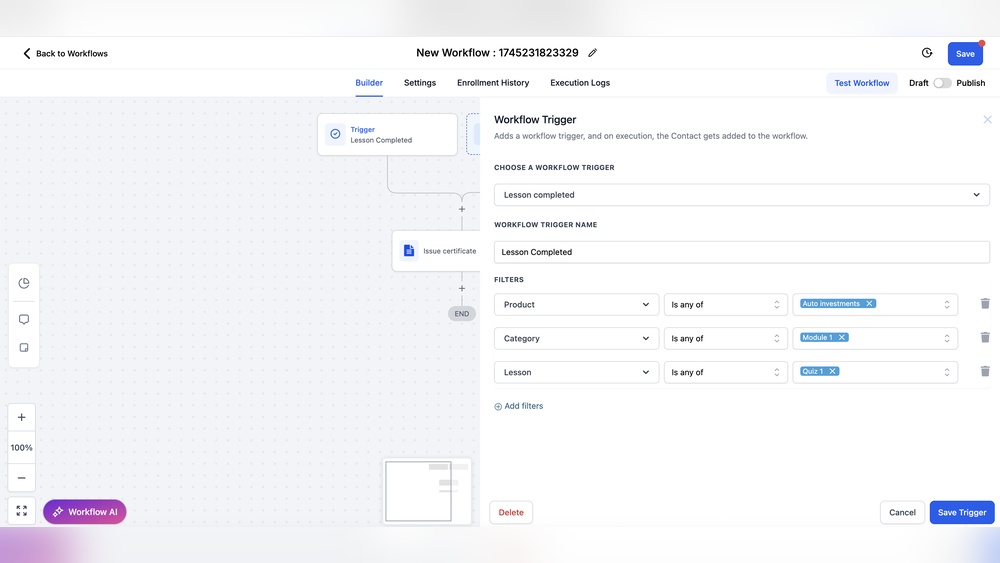
Set up automatic delivery to send certificates instantly after course completion. Automation saves you time and ensures every learner receives their certificate promptly. Use email integration or direct download links. Confirm that the certificate matches the learner’s information correctly before sending.
Keep records of all issued certificates to monitor learner progress. Tracking helps verify who received certificates and when. Use a spreadsheet or a learning management system with built-in tracking features. This also helps resolve any certificate-related queries quickly.
Integrating quizzes and assignments creates a smooth learning flow. It helps track student progress clearly. Students engage better when assessments connect well. This section explains how to link quizzes and assignments effectively. You will also learn to set mastery criteria and use rubrics for fair grading.
Link quizzes directly to related assignments for better tracking. This creates a clear path for learners to follow. Start by creating a quiz that covers key topics. Then, attach it to the corresponding assignment in your LMS. This ensures grades from quizzes update the assignment record automatically. Students see their quiz scores as part of their assignment results.
Linking helps teachers monitor performance in one place. It reduces confusion and keeps all results organized. It also saves time by avoiding duplicate grading tasks.
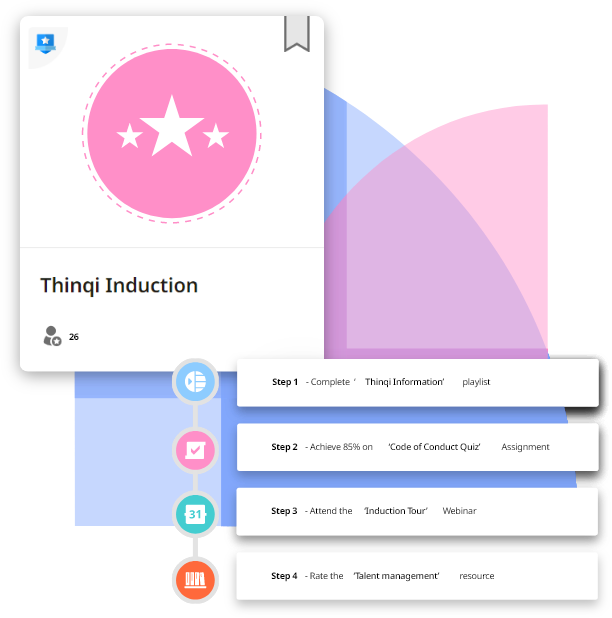
Define clear mastery criteria for quizzes and assignments. Decide the minimum score students must reach to pass. For example, set 80% as the mastery level. Students below this score can retry or get extra help. This motivates learners to understand content fully before moving on.
Use mastery settings to automate feedback and next steps. Your system can unlock certificates or new lessons once mastery is reached. This creates a personalized learning path based on each student’s success.
Rubrics provide clear grading guidelines for assignments and quizzes. They break down criteria into categories with different score levels. For example, a rubric can assess clarity, accuracy, and completeness. This helps students understand what is expected.
Rubrics make grading fair and consistent across all submissions. Teachers give detailed feedback by referring to rubric points. Students see exactly where they did well and where to improve. Use rubrics to support learning and improve assessment quality.
Managing student access is vital when adding quizzes, certificates, and assignments. It ensures learners get the right tools at the right time. Proper access control maintains fairness and supports diverse learning needs. This section breaks down key steps to manage access effectively.
Accommodations help students with special needs complete tasks fairly. You can extend time limits or allow breaks. Set these options in your quiz or assignment settings. Time limits keep the assessment focused and prevent guessing. Adjust times based on task difficulty and student needs.
Control when students can access quizzes or assignments. Set start and end dates to limit access. This keeps the course organized and prevents late submissions. Use availability settings to open tasks only after certain lessons. This guides students through the material in order.
Track student progress to ensure they stay on task. Use built-in tools to see who has started or finished assignments. Monitoring helps identify students who need extra support. You can send reminders or offer help before deadlines. This improves learning outcomes and course completion rates.
Credit: thinqi.com
Troubleshooting common problems helps keep your quizzes, certificates, and assignments running smoothly. These issues can stop learners from completing tasks or receiving rewards. Fixing errors quickly improves user experience and course success.
Submission errors often happen because of internet problems or timeout limits. Check your network connection before submitting. Clear the browser cache and refresh the quiz page to fix glitches. Make sure the quiz settings allow multiple attempts if needed. Verify if all required questions are answered to avoid incomplete submissions.
Certificate delivery may fail due to email issues or system errors. Confirm the learner’s email address is correct. Check your email server settings and spam folder for blocked messages. Some platforms require manual approval before sending certificates. Test certificate generation with a trial user to catch problems early.
Upload failures occur because of file size limits or unsupported formats. Check the allowed file types in your assignment settings. Ask learners to compress large files or use common formats like PDF or DOCX. Ensure the upload button works properly and the server has enough storage. Refresh the page if the upload stalls or try a different browser.
Credit: support.globalsign.com
Visit quizizz. com and sign up. Choose or create a quiz. Share the game code with players. Monitor progress live. Review results after completion.
To add a quiz to an assignment in Canvas, create a quiz first. Then, link it to the assignment using the assignment settings. Select the quiz under “Submission Type” as “Quiz” and save your changes. This connects the quiz directly to the assignment for student access.
To add quizzes to the gradebook in D2L, go to Quizzes, select the quiz, click the dropdown next to “Not in Grade Book,” then choose “Add to Grade Book” or link an existing grade item.
Open Canvas Quizzes, select the quiz, click Moderate Quiz, then open Accommodation Settings. Adjust time or add extra attempts as needed. Save changes.
Adding quizzes, certificates, and assignments improves learning and engagement. Follow the steps carefully to set them up. Test each feature to ensure it works well. Clear instructions help learners succeed and stay motivated. Keep your content simple and organized for best results.
Regular updates keep your course fresh and effective. Start adding these tools today to enhance your online teaching.







Leave A Reply Now