



Your WordPress website is more than just a platform—it’s the heart of your online presence. But without proper security, backup, and maintenance, everything you’ve built could be at risk.
Imagine losing your content or facing a hacking attack that shuts your site down. Scary, right? This guide will show you simple, effective ways to keep your WordPress site safe and running smoothly. By taking the right steps now, you protect your work and give yourself peace of mind.
Ready to make your website stronger and stress-free? Let’s dive in.
WordPress websites face many security threats daily. These threats can harm your site, steal data, or slow down performance. Understanding common security risks helps protect your site and keep it running smoothly. This section covers the main WordPress security threats and simple steps to prevent them.
Brute force attacks try many username and password combinations to access your site. Hackers use automated tools to guess login details.
Malware can damage your site or steal data. It often enters through outdated plugins or themes.
SQL injection lets hackers add harmful code to your database. It happens when input fields are not protected.
XSS attacks inject malicious scripts into your site. Visitors might get infected or redirected to bad sites.
Old WordPress versions, themes, or plugins often have security gaps. Hackers exploit these weaknesses.
| Risk | Prevention |
|---|---|
| Outdated WordPress core | Update WordPress regularly |
| Old plugins | Remove unused plugins, update active ones |
| Unpatched themes | Use themes from trusted developers and update often |
Weak server security can leave your WordPress site vulnerable to attacks.

Credit: www.ripemedia.com
WordPress security is crucial for protecting your website from hackers and malware. Using the right security plugins helps keep your site safe and running smoothly. These plugins scan for threats, block attacks, and strengthen your defenses automatically. Choosing the best security plugin saves time and protects your data.
Wordfence Security is a popular plugin with a strong firewall and malware scanner. It monitors live traffic and blocks malicious users in real time. Features include:
Wordfence offers a free version with essential features and a premium version with advanced options.
iThemes Security focuses on fixing common WordPress vulnerabilities. It provides over 30 ways to protect your site. Key highlights:
Its simple interface suits beginners and advanced users alike.
Sucuri Security offers a complete security solution. It includes malware scanning, blacklist monitoring, and security auditing. Benefits include:
| Feature | Description |
|---|---|
| Malware Scanner | Checks your site for malware and vulnerabilities regularly |
| Security Activity Audit | Tracks all user actions to spot suspicious behavior |
| Blacklist Monitoring | Alerts you if your site appears on any blacklist |
| Post-Hack Security Actions | Helps clean and restore your site after an attack |
All In One WP Security & Firewall is user-friendly and suitable for all skill levels. It adds layers of protection without slowing your site. Features include:
BulletProof Security offers one-click setup and advanced security tools. It protects your website from various attacks with features such as:
This plugin suits users who want both ease and control over security settings.
Backing up your WordPress site is a critical step to keep your data safe and your site running smoothly. Setting up daily or weekly backups ensures you always have a recent copy of your site ready. This protects your content from accidental loss, hacks, or server failures. Below are simple steps and methods to help you create reliable backups.
Start by selecting a backup plugin that fits your needs. Popular options include:
Look for plugins with good reviews and regular updates.
Decide how often to back up your site based on how frequently you update content.
| Backup Frequency | Best For |
|---|---|
| Daily | Sites with daily posts or active e-commerce stores |
| Weekly | Sites updated less often or with stable content |
Set the backup schedule in your plugin settings to match your choice.
Store backups in secure locations away from your site server. Options include:
Check that your plugin supports your chosen storage option.
Regularly test backups to ensure they work. Follow these steps:
Testing confirms your backups are complete and restorable.
Enable email alerts for backup completion or errors. Benefits include:
Most backup plugins have built-in notification features.
Protecting your WordPress admin login is critical for website security. Attackers often target the login page to break in. Simple passwords and unlimited login attempts make sites easy targets. Using Two-Factor Authentication (2FA) and limiting login attempts adds strong layers of defense. These methods stop many common hacking attempts and keep your site safe.
Two-Factor Authentication adds an extra step to login. After entering your password, you must provide a second form of proof. This could be a code sent to your phone or an app-generated number.
This extra step makes it much harder for hackers to access your admin area.
Google Authenticator or Two Factor.Limiting login attempts stops repeated tries to guess passwords. It blocks users after a set number of failed logins for a time.
This helps prevent brute force attacks, where hackers try many passwords quickly.
| Feature | Benefit |
|---|---|
| Limit failed login attempts | Stops repeated guessing |
| Temporary lockout | Delays attackers |
| Notify admin | Alerts about possible attacks |
Limit Login Attempts Reloaded or Login LockDown.Keeping your WordPress themes and plugins updated is vital for site security and performance. Outdated items can cause security risks and slow your site. Yet, updates sometimes break your site, creating frustration. Learning how to update safely keeps your site smooth and secure without downtime.
Always create a full backup before updating themes or plugins. Backups save your site if an update causes problems. Use backup plugins or your hosting provider’s tools to copy your entire site and database.
A staging site is a copy of your live website for testing changes safely. Test updates here first to catch issues. Many hosts provide easy staging setups.
Updating multiple plugins or themes at once can hide errors. Update one item at a time. Check the site after each update to spot problems early.
Choose themes and plugins from trusted sources. Reliable developers provide regular updates and support. This reduces the chance of breaking your site during updates.
| Source Type | Pros | Cons |
|---|---|---|
| Official WordPress Repository | Free, regularly updated, secure | Limited advanced features |
| Premium Marketplaces | More features, support available | Cost involved, variable quality |
| Unknown Sources | Sometimes free or unique | Higher risk of vulnerabilities |
Activate maintenance mode before updating to hide errors from visitors. It shows a simple message and prevents site use during updates.
function enable_maintenance_mode() { if (!current_user_can('administrator') && !is_admin()) { wp_die('Site is under maintenance. Please check back soon.'); } } add_action('get_header', 'enable_maintenance_mode'); Deactivate maintenance mode after updates finish and tests pass.
WordPress websites face security risks daily. Hackers target sites to steal data or cause damage. Knowing how to clean up a hacked WordPress website is critical. This process restores your site’s safety and trust. It also prevents future attacks. Follow clear steps to regain control and keep your website running smoothly.
First, check signs of a hack. Common symptoms include:
Use security plugins or online tools to scan your site for malware. Document all findings. Knowing the damage helps plan the cleanup.
Before any cleaning, create a full backup of your website. This includes:
This backup acts as a safety net if anything goes wrong during cleanup. Use trusted backup plugins or your hosting provider’s tools.
After backup, start removing harmful code. Steps include:
wp-config.php file for unusual code.wordpress.org.Delete all unused plugins and themes. They can be entry points for hackers.
Change all passwords related to your site immediately:
| Account | Action |
|---|---|
| WordPress Admin | Create a strong new password |
| FTP/SFTP | Update credentials |
| Database | Change database user password |
| Hosting Control Panel | Reset login details |
Review user roles. Remove unknown users or reduce their permissions.
After cleanup, update WordPress core, plugins, and themes. Updates fix security holes. Strengthen your website with these tips:
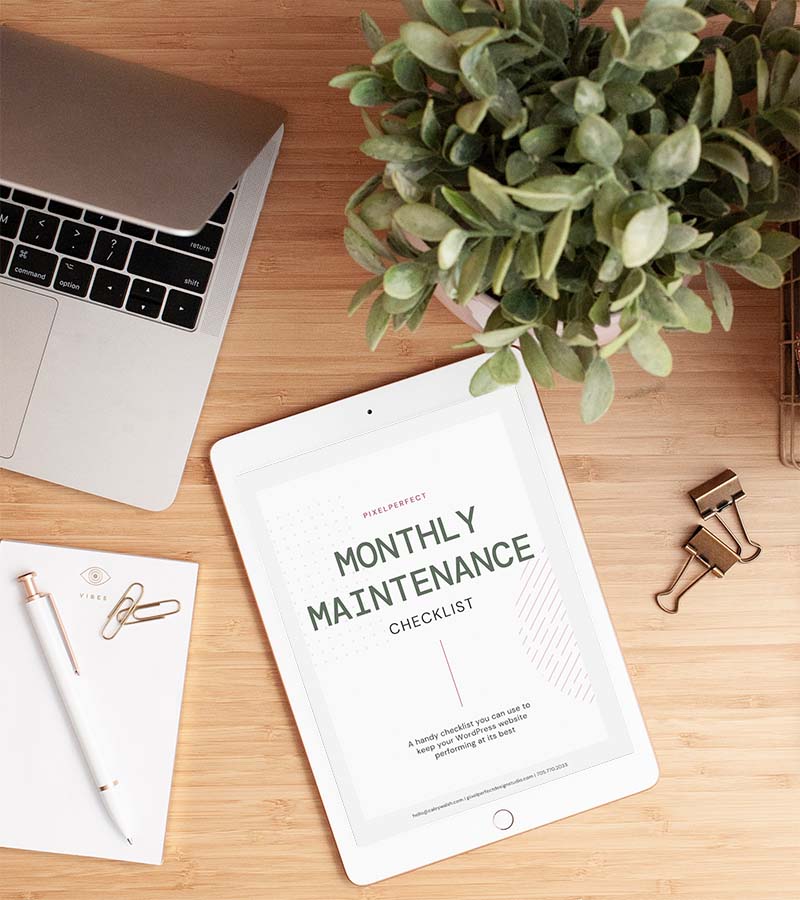
Keeping a WordPress site secure and running smoothly takes regular work. A monthly maintenance checklist helps keep everything in top shape. This checklist covers important tasks to protect your site, back up your data, and update your tools. Doing these tasks each month stops problems before they start and keeps your site fast and safe.
Updates fix bugs and close security holes. Check for new versions of WordPress, your themes, and plugins every month. Install updates carefully and test your site after each update.
Fast websites keep visitors happy. Test your site speed monthly to find slow parts. Use tools like Google PageSpeed Insights or GTmetrix.
Backups save your site if something goes wrong. Check your backup system every month to make sure it works.
Security scans find hidden problems. Run a malware scan each month using security plugins like Wordfence or Sucuri.
Old or broken content hurts user experience and SEO. Check your posts and pages monthly.
Review site traffic and user actions monthly. Use Google Analytics or other tools to understand visitor patterns.
Credit: pixelperfectdesignstudio.com
Monitoring your WordPress site’s uptime and performance is essential to keep it safe and running smoothly. A site that is always available and loads fast improves user experience and boosts your search rankings. Regular checks help spot problems early, so you can fix them before they affect visitors. This section explains simple ways to track your site’s health effectively.
Site uptime means the time your website is accessible to visitors without any downtime. High uptime (close to 100%) means your site rarely goes offline.
Downtime can cause lost visitors, lower sales, and damage your reputation. Monitoring uptime ensures quick action if your site stops working.
Several easy-to-use tools check your site’s availability automatically. They notify you by email or SMS when your site is down.
Performance means how fast your site loads and responds. Fast sites keep visitors happy and improve SEO.
Use these tools to measure speed and find slow elements:
| Metric | What It Means | Why It Matters |
|---|---|---|
| Uptime Percentage | Time your site is online | Ensures visitors can access your site anytime |
| Load Time | Time taken to fully load your pages | Fast load keeps visitors engaged |
| Response Time | How fast your server answers requests | Faster responses improve user experience |
| Error Rate | Number of failed page loads or errors | Helps identify technical problems quickly |
Alerts notify you instantly about downtime or slow performance. Set alerts in your monitoring tool for:
Regular reports summarize your site’s health. Review them weekly or monthly to track trends and fix issues.
GDPR & Privacy Policy Setup for WordPress Sites is essential for protecting user data and complying with laws. The General Data Protection Regulation (GDPR) sets rules for how websites handle personal information. WordPress site owners must create clear privacy policies and manage user data carefully. This builds trust and avoids legal issues. The process includes informing users about data collection, usage, and their rights.
GDPR is a regulation by the European Union. It protects personal data of people in the EU. Any website that collects data from EU users must follow GDPR rules.
Failing to follow GDPR can lead to fines and loss of reputation. WordPress sites need to take these rules seriously.
Use the WordPress Privacy Policy Generator for a quick start. Customize it to match your site’s data practices.
Link this page in your footer or main menu to make it easy to find.
| Plugin | Main Features | Cost |
|---|---|---|
| WP GDPR Compliance | Cookie consent, data access requests, user consent logs | Free |
| Complianz | Cookie notice, policy generator, regional compliance | Free with premium options |
| Cookiebot | Automatic cookie scanning, consent management | Free up to 100 pages |
Credit: simplyscheduleappointments.com
Moving a WordPress website can feel tricky. It must be done carefully to avoid data loss or downtime. Safe migration keeps your site secure and running smoothly. This guide shows simple steps to migrate your WordPress site without hassle.
Start with a full backup. This protects your data from any mistakes. Use plugins like UpdraftPlus or Duplicator to save all files and databases.
Export your content using the WordPress export tool. It creates an XML file of your posts, pages, and media.
Save this file safely. It helps you import content to the new site.
Choose a reliable host before migration. Prepare the new server with these steps:
| Step | Action |
|---|---|
| 1 | Create a new database with proper user access |
| 2 | Install the latest WordPress version |
| 3 | Upload backup files to the server |
| 4 | Modify wp-config.php with new database details |
Import your XML file using the WordPress import tool.
Test all pages and features. Fix any errors before going live.
Update DNS settings to point your domain to the new host. This may take some hours to propagate.
Safe migration ensures your WordPress website stays secure and performs well after the move.
Use strong passwords, keep plugins updated, and enable two-factor authentication. Regularly scan for malware and limit login attempts. These steps protect your site from hackers and vulnerabilities effectively.
Backup your WordPress site at least once a week. For high-traffic sites, consider daily backups. Regular backups ensure quick recovery from data loss or cyberattacks.
Use plugins like UpdraftPlus for backups and Wordfence for security. Also, optimize your database and update themes regularly. These tools keep your site fast and secure.
Limit login attempts, install security plugins, and use SSL certificates. Keep WordPress core, themes, and plugins updated to block vulnerabilities. These measures reduce hacking risks significantly.
Protecting your WordPress site takes regular care and simple steps. Keep your backups updated to avoid losing data. Check your security settings often to stop threats early. Clean up old files and plugins to keep your site fast. Staying on top of maintenance helps your site run smoothly.
Small actions every week build strong defenses. Your website deserves safe and steady performance. Stay consistent, stay secure.







Leave A Reply Now