



If you’ve ever wondered how WordPress really works, you’re in the right place. Understanding the basics—how themes, plugins, and the dashboard fit together—can feel confusing at first.
But once you get it, managing your website becomes simple and even enjoyable. You’ll discover exactly what themes and plugins do, and how the WordPress dashboard puts everything at your fingertips. By the end, you’ll feel confident navigating your site and making it look and work just the way you want.
Ready to unlock the full potential of your WordPress website? Let’s dive in!
Credit: www.acunetix.com
The WordPress core components form the foundation of every WordPress website. They work behind the scenes to make your site function smoothly and efficiently. Understanding these components helps you grasp how WordPress delivers content and manages your data. This section breaks down the core elements into simple parts.
WordPress uses PHP as its main programming language. PHP processes the website’s code on the server. It creates the pages you see in your browser. MySQL is the database system WordPress uses. It stores and retrieves all your website’s data. PHP and MySQL work together to build dynamic pages quickly. This combination powers the interactive nature of WordPress.
Content in WordPress is stored inside the MySQL database. Posts, pages, comments, and settings all live in this database. Each type of content is saved in specific tables. WordPress then uses PHP to pull this data and show it on your site. This method keeps content organized and easy to update. It also allows for fast loading and smooth user experience.
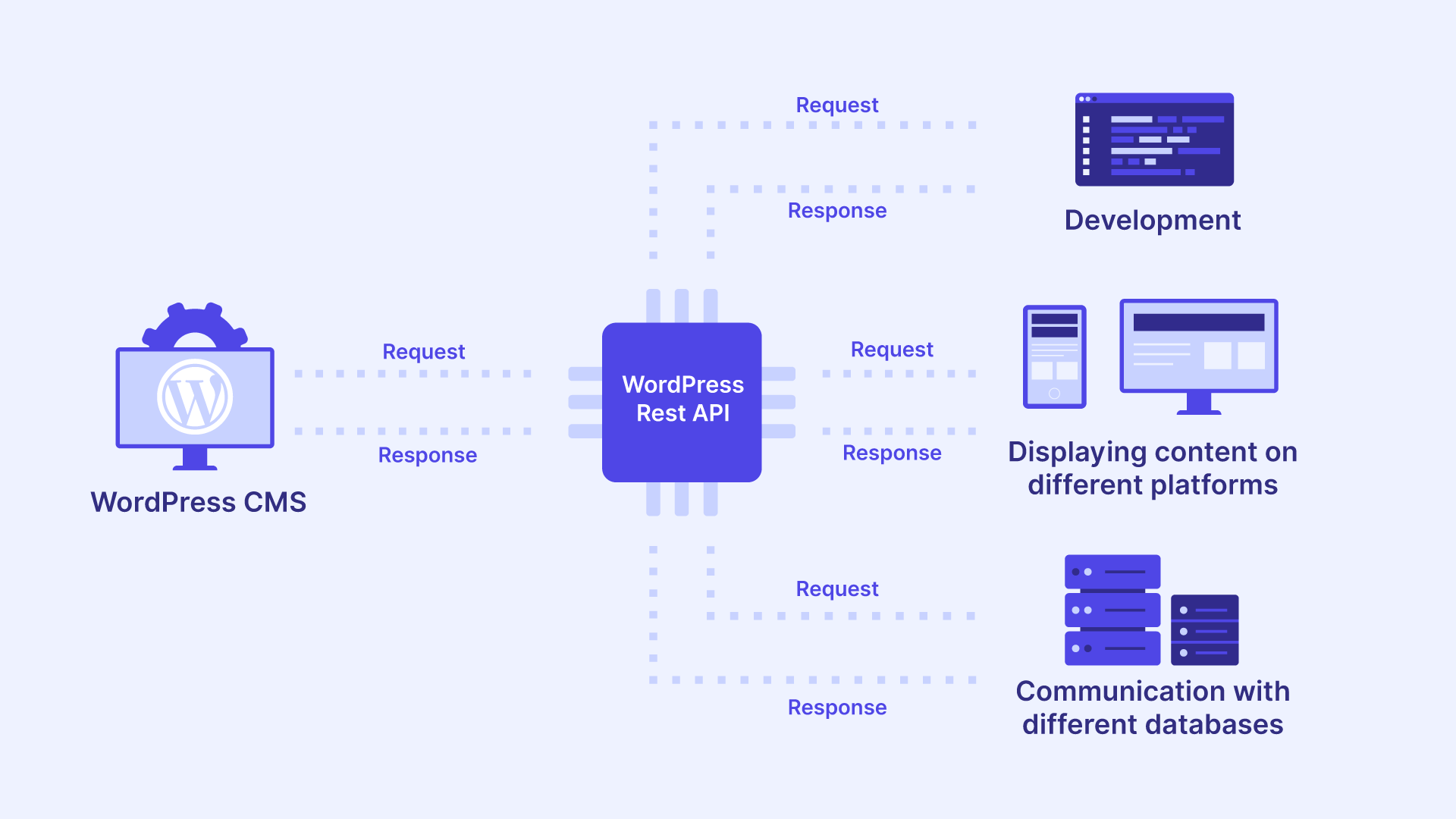
The WordPress core is the set of files that control your website’s basic functions. It handles everything from content display to user management. The core also manages communication between your database and the browser. WordPress updates regularly to improve security and add features. Themes and plugins extend the core’s abilities without changing it. This keeps your website stable and flexible.
Credit: wp-umbrella.com
The Themes and Appearance section in WordPress lets you control your website’s look. It shapes the style, colors, layout, and fonts visitors see. This section offers tools to pick, install, and change themes. Themes help make your site unique and user-friendly.
Understanding themes is key for customizing your website’s design easily. WordPress themes provide a ready-made design that you can adjust. Let’s explore how themes work and how you can use them.
Themes control your website’s overall design and layout. They decide the header, footer, and sidebar style. Themes also set font types, colors, and button shapes. They create a consistent look across all pages. Themes affect how content is displayed visually. They do not change the website’s core functions.
WordPress offers many free and paid themes in its directory. You can preview themes before installing them. Choose a theme that matches your website’s purpose. Install themes directly from the WordPress dashboard. After installation, activate the theme to apply it. Changing themes is simple and takes only a few clicks.
After activating a theme, you can customize it to fit your style. Use the WordPress Customizer tool for live preview changes. Adjust colors, fonts, logos, and menus easily. Some themes offer extra settings for layouts and widgets. Customization helps make your website personal and professional. Save changes and see them instantly on your site.
Plugins add extra features to your WordPress site. They help your website do more than just show content. From simple contact forms to complex e-commerce tools, plugins expand your site’s abilities. Understanding plugins is key to making your website work the way you want.
Plugins give your site new functions. They can add galleries, SEO tools, or security features. Each plugin serves a specific purpose. You can use many plugins together to build a powerful website. Without plugins, WordPress would be basic and less useful.
Find plugins inside your WordPress dashboard. Go to the Plugins menu and click “Add New.” Search by name or feature to find what you need. Check plugin ratings and reviews before installing. Click “Install Now” and then “Activate” to start using the plugin.
After activation, many plugins add their own settings. Find these settings in your dashboard, often under “Settings” or a new menu item. Adjust options to fit your needs. Regularly check for plugin updates to keep your site secure and working well.

Credit: instawp.com
The WordPress dashboard is the central place to control your website. It helps you manage your site easily. The dashboard gives access to all important tools in one place. Understanding its layout makes site management simple and smooth.
The dashboard shows a quick summary of your website’s activity. You see recent posts, comments, and updates here. It also displays notifications for plugins and WordPress updates. The left sidebar contains menus for different sections like posts, pages, and settings. This sidebar is your main navigation tool to reach all parts of your site.
Creating content is easy from the dashboard. You can add new posts or pages with just a few clicks. The editor allows you to write text, add images, and format content without coding. Media files like photos and videos upload directly through the dashboard. It also lets you schedule posts to publish later, keeping your site active and fresh.
The dashboard offers many features to manage your site efficiently. You can install and activate plugins to add new functions. Themes are available here to change your site’s look and feel. User roles and permissions can be set to control who can edit or publish content. Settings allow you to adjust site details like titles, URLs, and comments. All these tools help keep your website running smoothly.
User roles and permissions in WordPress control what each user can do on your website. This system keeps your site secure and organized. It lets you assign different levels of access to different people.
This way, you can decide who can write posts, change settings, or manage plugins. Understanding user roles helps you manage your site better and avoid mistakes.
WordPress has several user levels. Each level has specific abilities. The main roles are Administrator, Editor, Author, Contributor, and Subscriber.
Administrators have full control over the site. Editors can publish and manage posts. Authors can write and publish their own posts. Contributors can write but cannot publish. Subscribers can only read content and manage their profile.
Assigning roles is simple in WordPress. When you add a new user, you choose their role from a dropdown menu. You can also change roles for existing users anytime.
Choose roles based on what the user needs to do. Giving too many permissions can cause problems. Be careful with Administrator roles, as they have full access.
Access control means limiting what users can see and do. WordPress uses roles to control access to different parts of the dashboard.
This control keeps your site safe from unwanted changes. It also helps users focus on their tasks without distractions. Proper access control improves teamwork and site management.
Keeping your WordPress site updated and maintained is crucial for smooth performance. Updates fix bugs, add features, and improve security. Regular maintenance prevents problems and keeps your site fast and safe.
WordPress releases core updates to improve the platform. These updates fix security issues and add new functions. Installing core updates quickly reduces risks from hackers. You can update WordPress from your dashboard with one click. Always update to the latest version for the best experience.
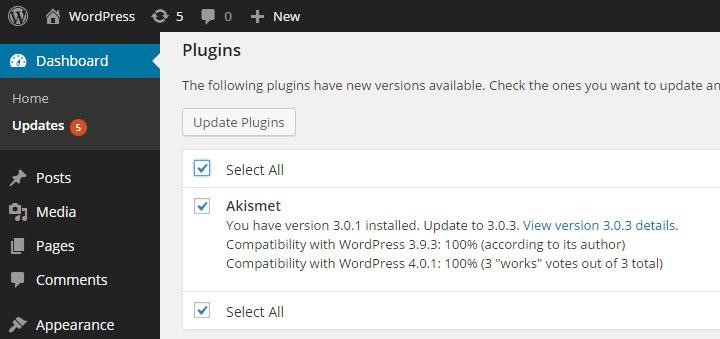
Themes and plugins also need regular updates. Developers release updates to fix bugs and add features. Outdated themes or plugins can cause errors or security holes. Updating them from the dashboard keeps your site stable. Check for updates often and apply them as soon as possible.
Backing up your site is essential before any update. A backup saves your site’s data and files. If something goes wrong, you can restore your site quickly. Use backup plugins or your hosting service’s tools. Also, keep security measures like firewalls and strong passwords active. This protects your site from threats and data loss.
WordPress is built for easy content management. Users follow common workflows to keep sites active and engaging. These workflows cover creating content, managing files, and interacting with visitors. Understanding these steps helps you use WordPress confidently.
Posts and pages are the main content types in WordPress. Posts are for blog entries and updates. Pages hold static information like About or Contact details. To publish, go to the dashboard, select Posts or Pages, and click Add New. Write your content, add images, and hit Publish. You can also schedule posts for future dates. Editing and updating content is simple and fast.
Media includes images, videos, and documents used in your content. WordPress has a Media Library to upload and organize these files. Upload files directly or drag and drop them into the library. You can edit media details like titles and descriptions. Insert media into posts or pages with just a few clicks. Proper media management improves site appearance and speed.
Comments allow visitors to interact with your site. WordPress lets you approve, reply, or delete comments from the dashboard. You can set rules to filter spam and hold comments for review. Engaging with comments builds community and trust. Regular comment management keeps your site clean and user-friendly.
A WordPress theme controls your site’s appearance and design. A plugin adds or extends your site’s functionality and features.
The WordPress dashboard lets you manage your website’s content, plugins, themes, settings, and overall functionality easily.
Themes control the appearance and layout of a WordPress site. Plugins add functionality and features to enhance site performance.
WordPress themes control your website’s design and layout. Installing a theme changes your site’s appearance without affecting content or functionality. Themes use templates and stylesheets to customize visuals, enabling users to create unique, responsive websites easily.
Understanding WordPress is simpler than it seems. Themes shape your site’s look and feel. Plugins add new features and functions. The dashboard helps you manage everything easily. With these tools, you control your website’s style and behavior. Keep exploring and customizing to fit your needs.
WordPress gives you flexibility without complex coding. Start small and grow your site step by step. Enjoy the process of building your online presence.







Leave A Reply Now